

In the modern digital art world, choosing a suitable drawing tablet is a decisive factor in helping you develop your skills and increase work productivity. The Matisse wireless drawing tablet is becoming the preferred choice for many professional artists and beginners. This article will provide a comprehensive review of this product, from its physical design to its actual performance in use.
Design and Build Quality
Appearance and Materials
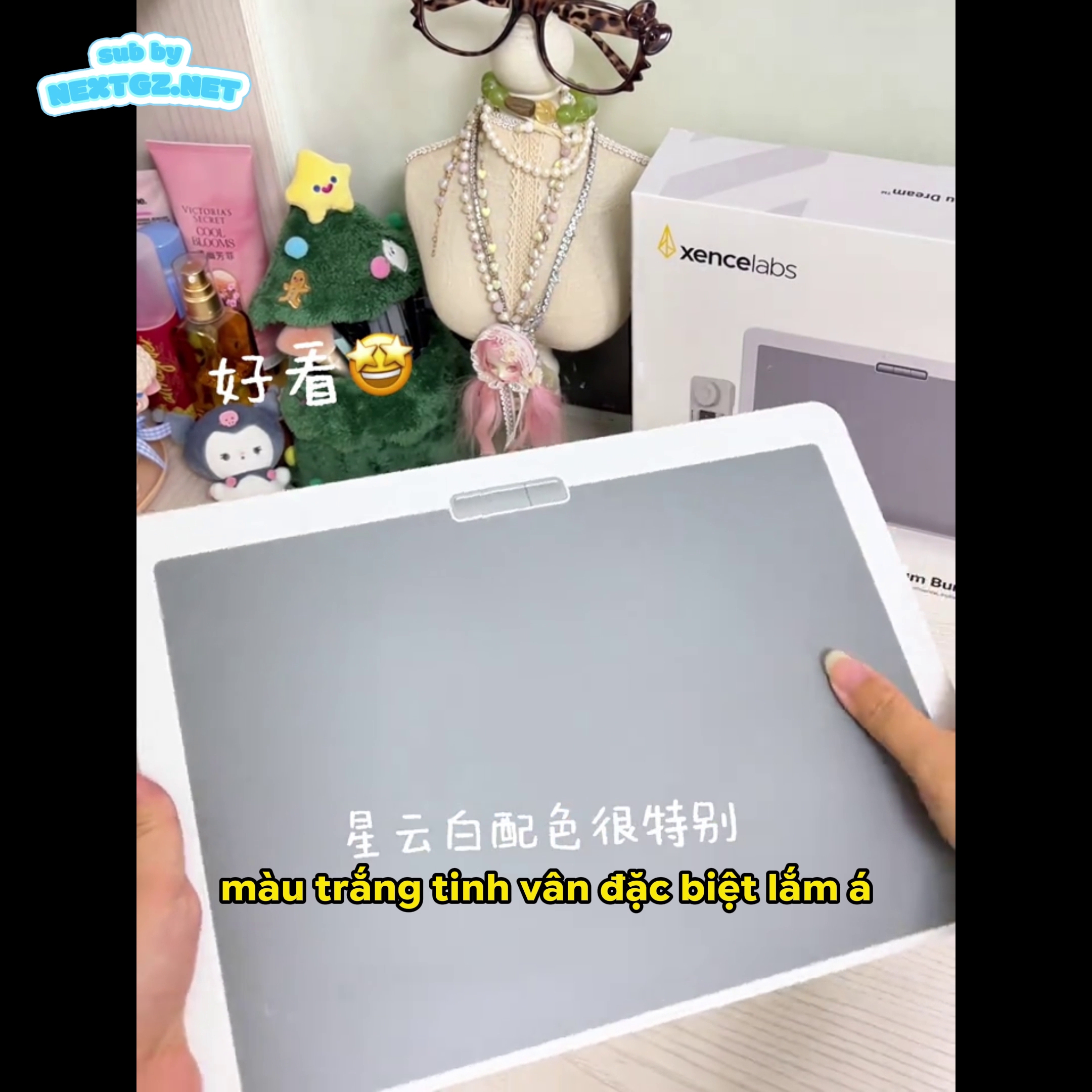
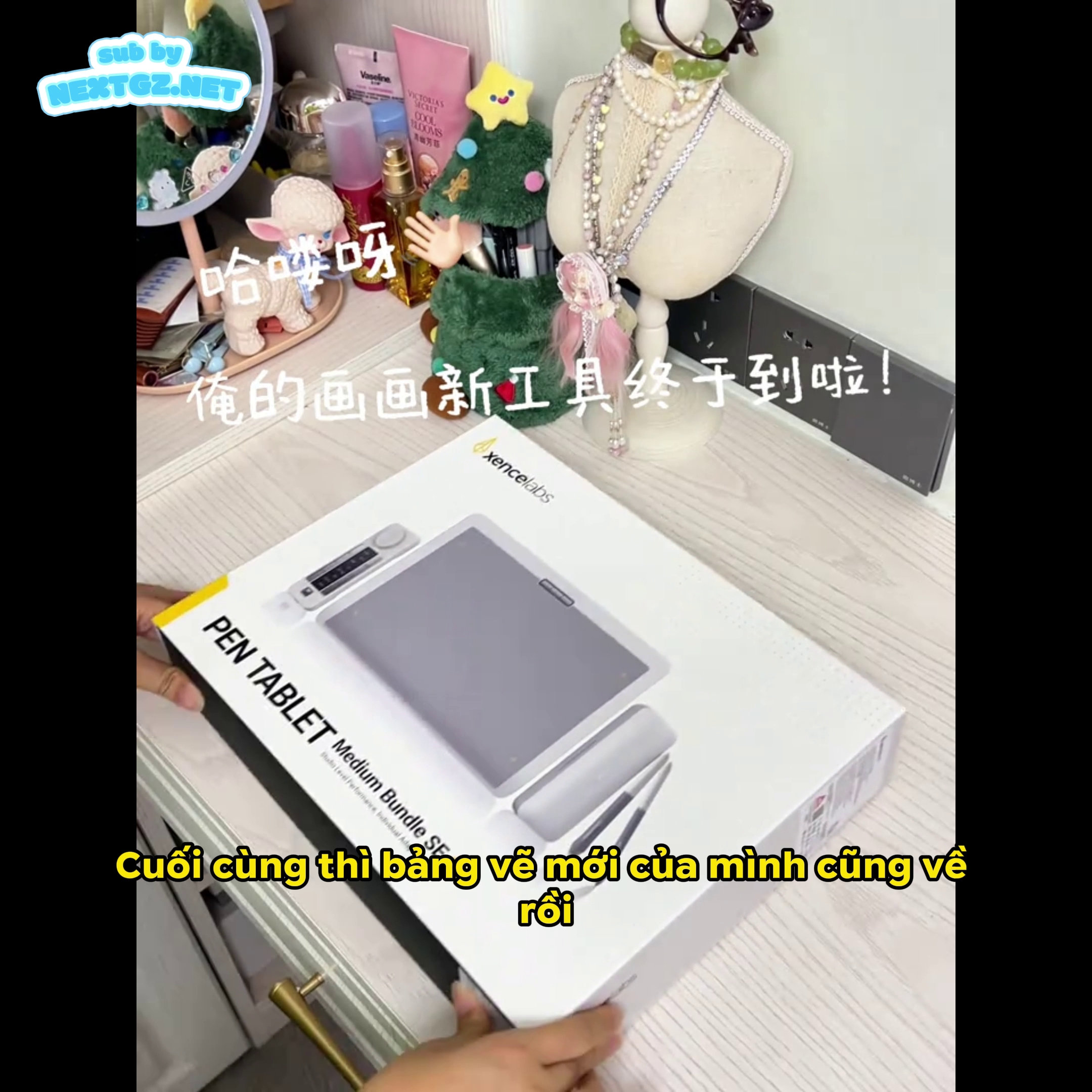
The wireless version of the Matisse tablet boasts a minimalist yet very elegant design, with the Nebula White color variant being particularly attractive. The tablet body is constructed with high quality, and both the tablet and stylus feel lightweight yet incredibly sturdy. This is very important as it allows you to hold the device for long periods without feeling fatigued.
The surface of the tablet has a slightly rough texture, simulating the feeling of drawing on real paper. This is an extremely important feature because it creates a drawing experience closest to traditional drawing methods, helping artists transition smoothly from hand drawing to digital drawing.
Size and Portability
The active area size of the Matisse tablet is reasonably designed, providing ample drawing space while still being easy to transport. The device's thinness is only about 8mm, making it a great choice for creative professionals who need to frequently carry their tools with them.
Notable Technical Specifications
Pen Pressure Sensitivity
One of the most important factors of any drawing tablet is the pen's pressure sensitivity. The Matisse tablet is equipped with 8,192 levels of pressure sensitivity, a high standard in the industry. This means the pen can detect very subtle pressure variations, allowing you to create lines of varying thickness, different coloring intensities, and highly realistic brush effects.
When using this pen, you will notice that each stroke is highly accurate, from very light hand-drawn lines to maximum pressure strokes. This sensitivity allows you to do everything from sharp line art to soft color blending.
Wireless Technology
The Matisse tablet's Bluetooth connection allows you to connect to a computer, Mac, or iPad device without a USB cable. This is a major advantage because it makes your workspace significantly tidier, reduces clutter, and creates a more professional working environment.
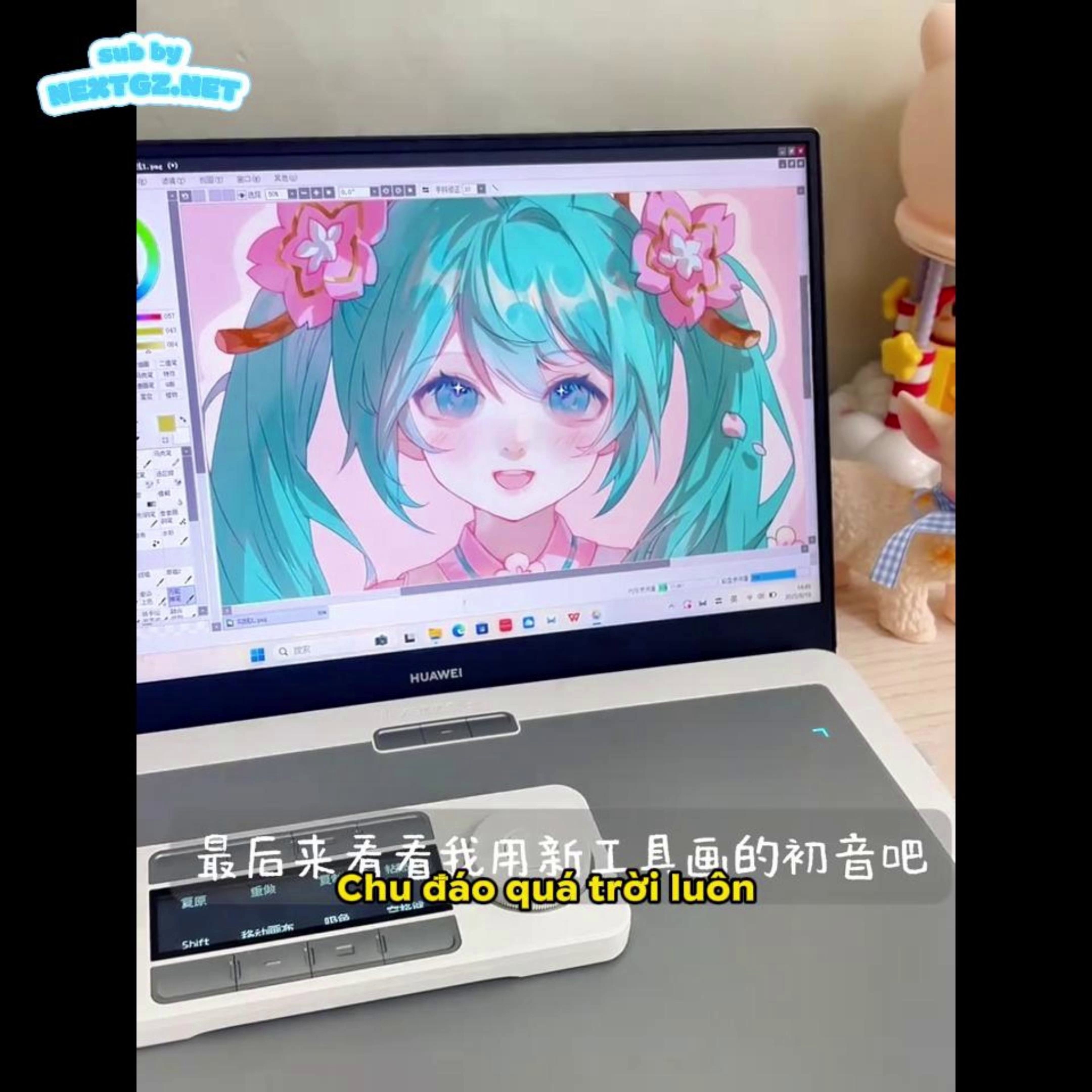
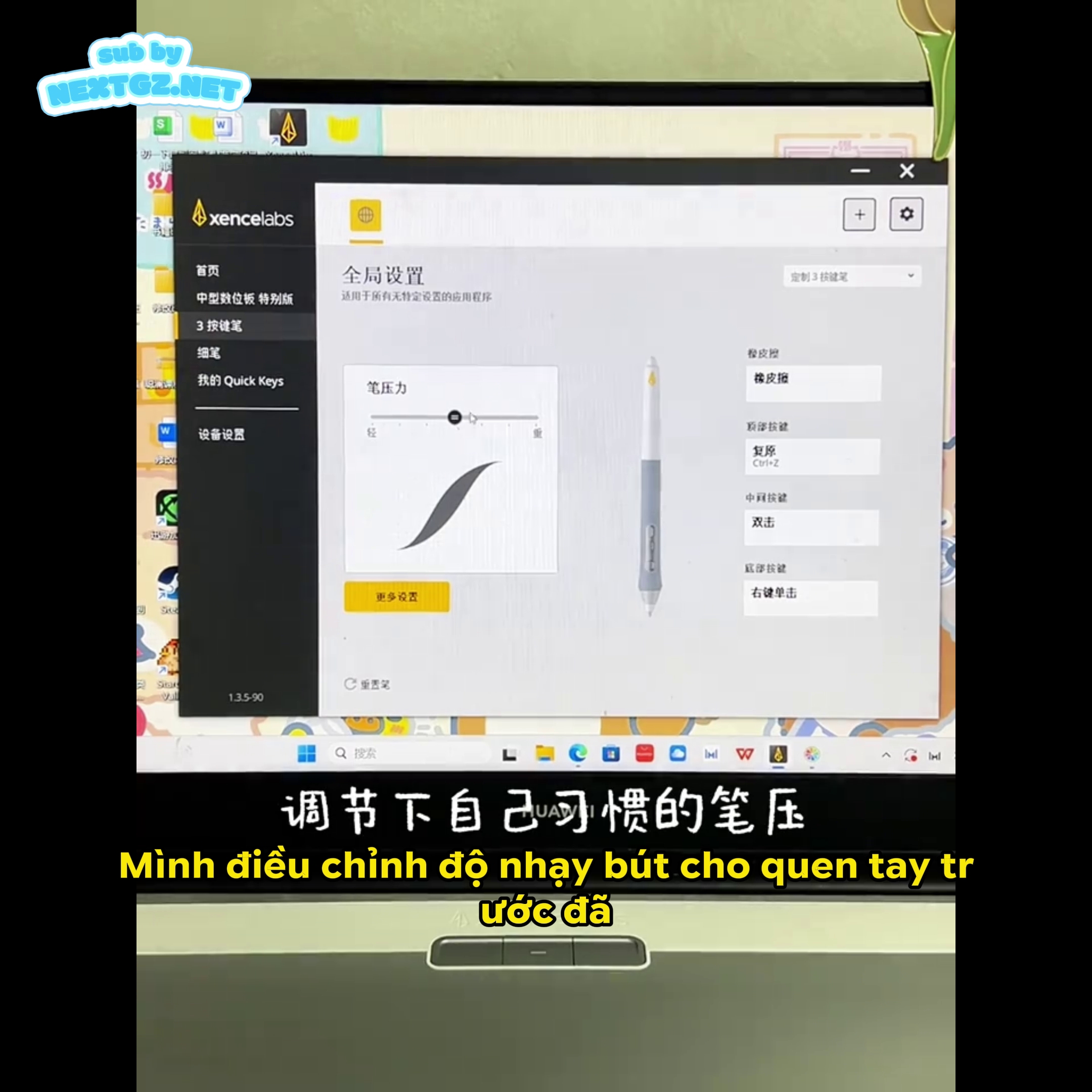
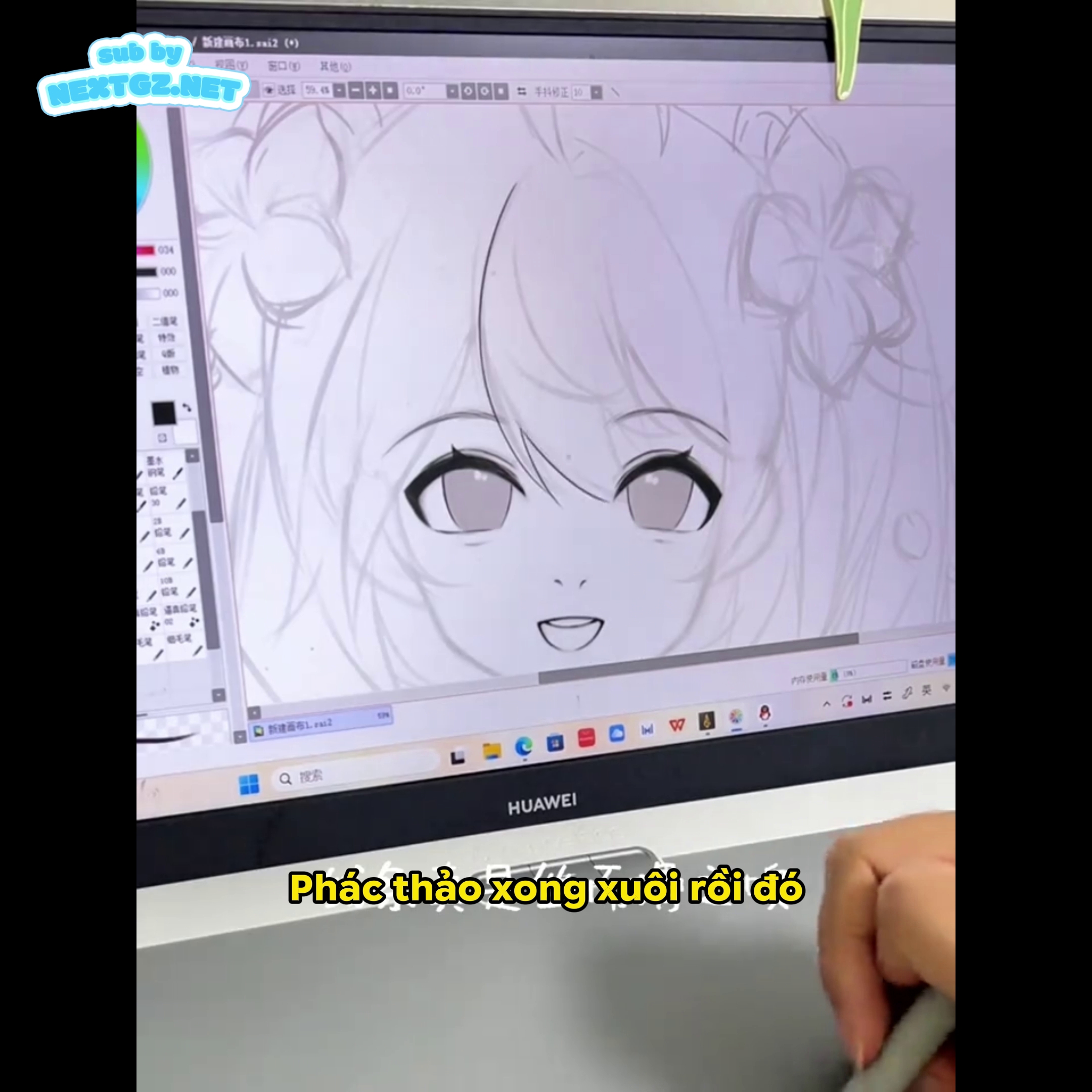
The wireless connection is very stable, and most importantly, there is no latency or stuttering when drawing. Latency is the time gap between when you move the pen and when you see it on the screen. The Matisse tablet has extremely low latency, almost zero, making you feel like you're drawing directly on the screen.
Battery Life
The Matisse tablet's battery is designed to provide extended usage time, allowing you to work all day without needing to recharge. This is very important for those who frequently work from different locations or attend events.
Advanced Wireless Control
OLED Screen and Function Display
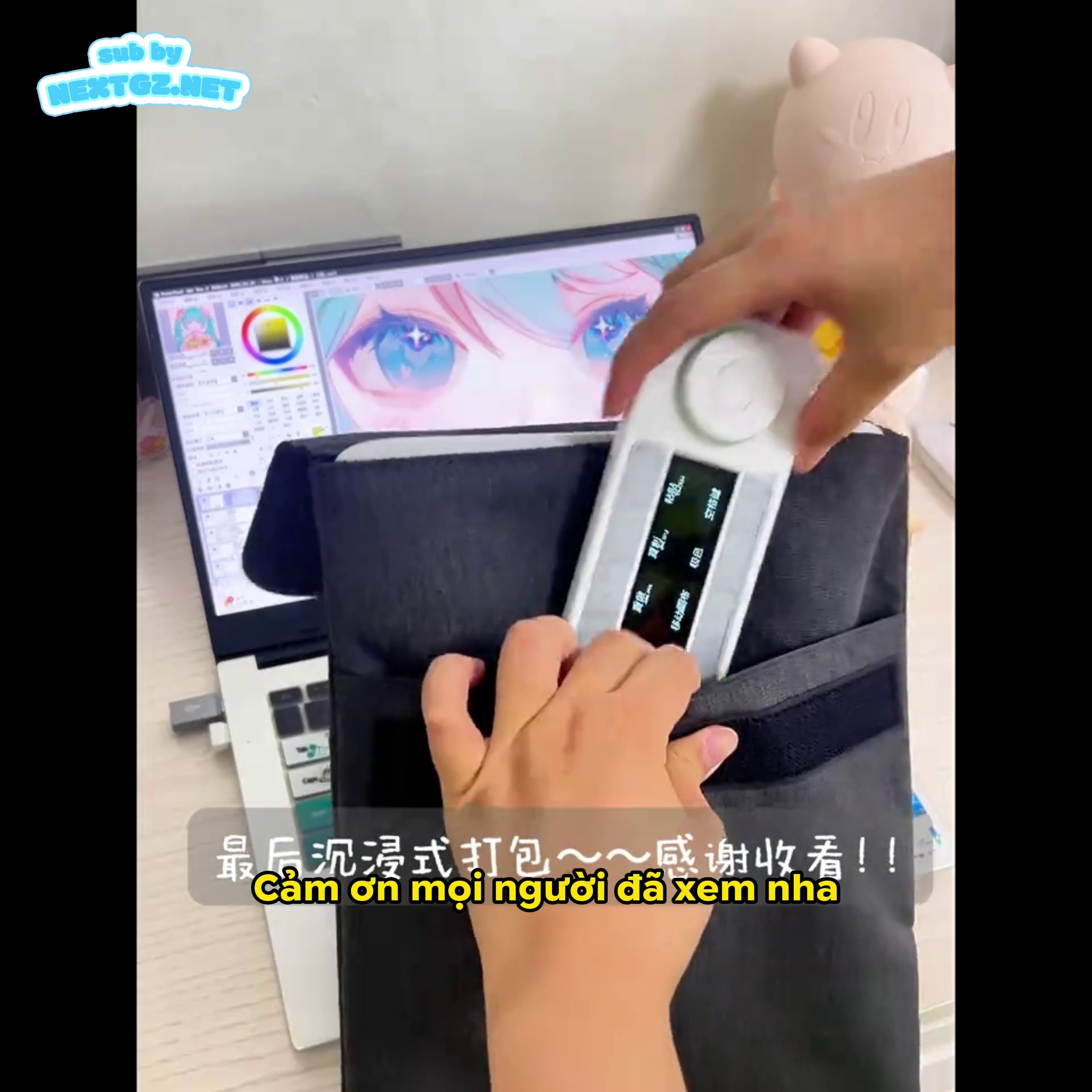
One of the most standout features of this product set is the wireless controller (Quick Keys Remote) with an integrated OLED screen. This screen displays the function of each button, ensuring you never forget which shortcut is assigned to which button. This is a truly valuable feature as it reduces confusion and speeds up workflow.
Customization Capability for 44 Quick Actions
Although the controller only has 8 physical buttons, it can be programmed to perform up to 44 different actions. This allows you to create a completely customized work setup for your specific needs. For example:
A set of shortcuts can be configured for line art work (undo, redo, zoom in/out)
Another set for coloring (eyedropper, brush size up/down, opacity adjustment)
A third set for adjustment layers and filters
This flexibility allows you to switch between different tasks without constantly searching through menus.
Multifunctional Scroll Wheel
The scroll wheel on the controller can be used to:
Adjust brush size
Zoom the canvas (zoom in/out)
Change layer opacity
Adjust selection size
This multifunctionality makes the workflow smooth and uninterrupted.
Actual Drawing Performance
Stroke Quality
When testing the Matisse tablet, the stroke quality truly stands out. The lines are very smooth, with no jaggedness or deviation, even when you draw long, flowing strokes. This is particularly important for line art work, where precision is paramount.
Blending and Shading Techniques
When coloring and blending colors, the tablet allows you to create soft and natural transitions. The feel of the tablet surface when coloring is similar to drawing on paper, with a distinctive slight roughness.
Connection Stability
Another important point is the stability of the wireless connection. Throughout the testing process, the connection never dropped, there was no sudden latency, and no stuttering occurred. This is a very impressive result because latency often occurs with wireless tablets.
Included Stylus Pens
Two Different Pen Sizes
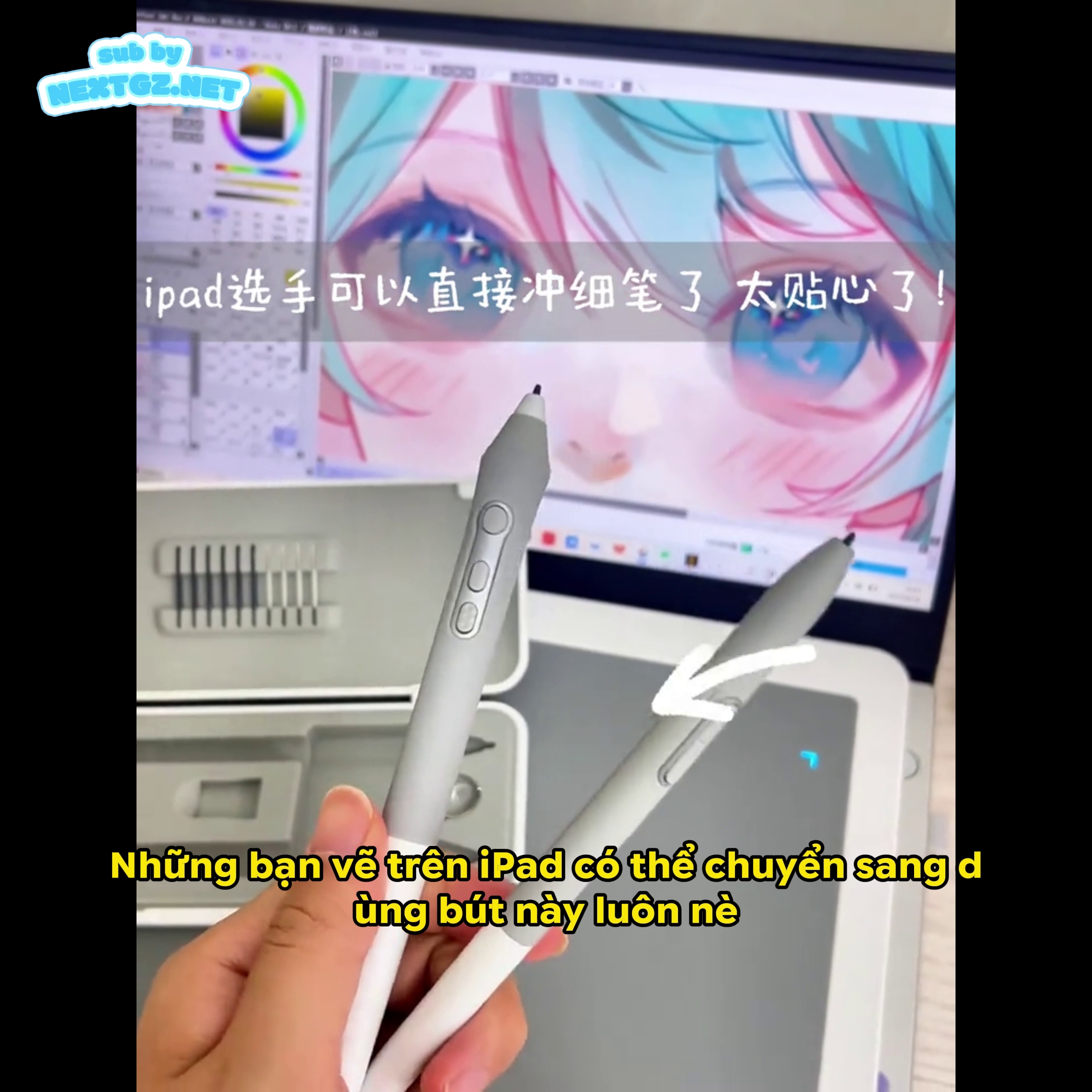
The Matisse tablet comes with two different sized stylus pens, which is very useful as it allows you to choose the size that best fits your hand and drawing style. Some people prefer the feel of a heavier pen, while others prefer a lighter one.
Compatibility with iPad
A notable feature is that both stylus pens are compatible with the iPad. This means if you are an iPad user wanting to switch to the Matisse tablet or want to use both devices, you don't need to buy separate stylus pens.
Practical Application: Drawing Hatsune Miku Cupcake
Step-by-Step Drawing Process
To comprehensively evaluate the tablet's capabilities, we undertook a complete illustration project: drawing Hatsune Miku in a chibi anime style, with a strawberry cupcake.
1. Sketching Phase (Sketch)
The Matisse tablet works excellently for quick sketching. The stylus pen responds very sensitively to gentle strokes, allowing you to create soft sketches without worrying too much about perfect accuracy.
2. Line Art Phase (Line Art)
This is where the Matisse tablet truly shines. The line art strokes are very sharp and smooth, with no deviation. The stability of the wireless connection ensures you can draw long, continuous lines without fear of losing connection mid-stroke.
Line art technique can be optimized by:
Using a hard brush for sharp edges
Adjusting pen pressure to create line weight variation
Using pressure curves in the software to customize how the pen responds
3. Coloring Phase (Coloring)
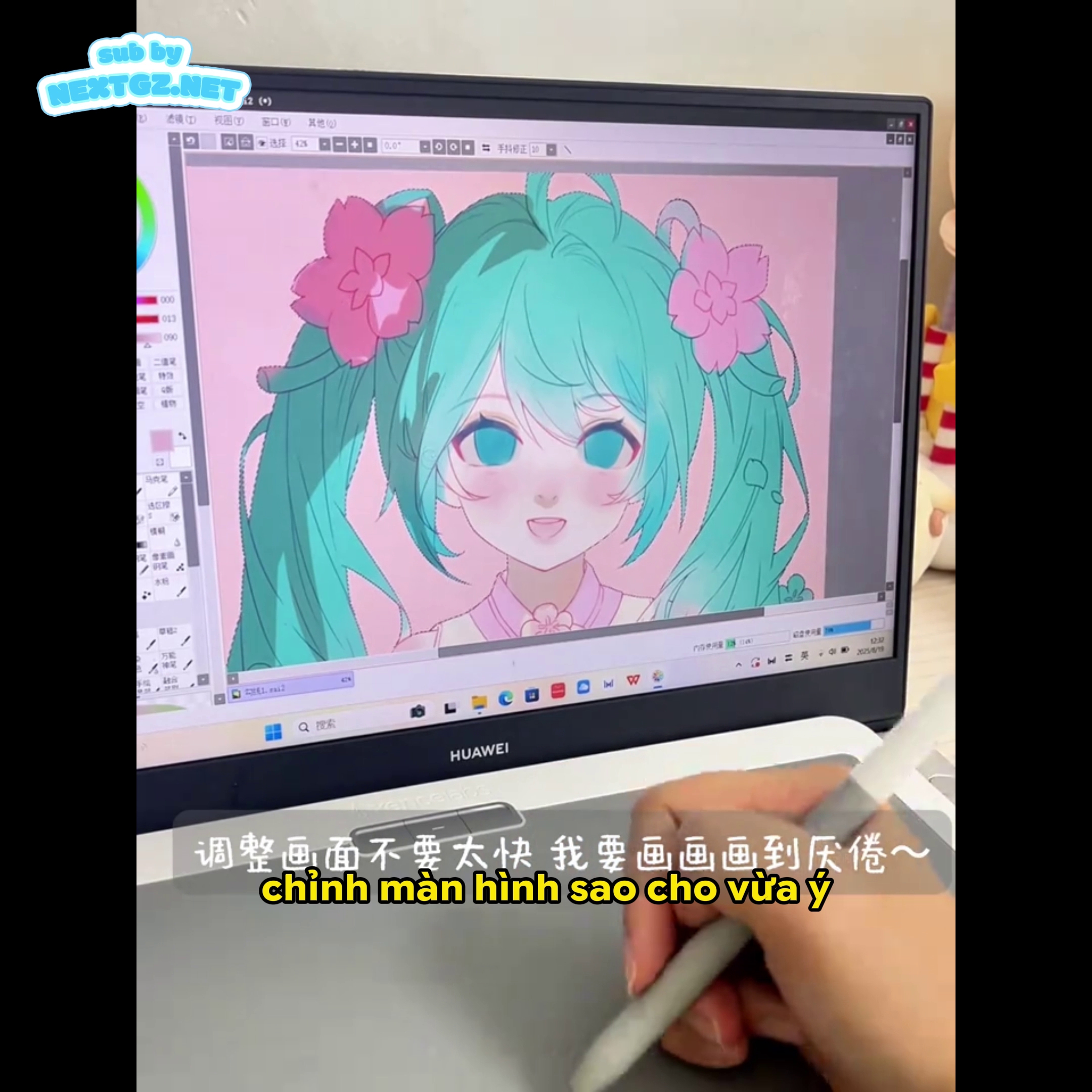
When moving to coloring, the tablet provides a very natural experience. Selecting colors is easy with the eyedropper tool, and coloring is very smooth thanks to the high pressure sensitivity.
4. Blending and Shading Phase
This is where the texture of the Matisse tablet's surface truly shines. When blending colors, the tablet provides a natural feel, very close to drawing on real paper. The blend strokes are very soft and natural.
5. Final Details
Adding highlights, special shadows, and final textures is made easy thanks to the wireless controller. You can use one hand to draw and the other to adjust canvas zoom or layers without moving your focus away from the drawing work.
Software Compatibility
The Matisse tablet is compatible with all major digital drawing software:
Adobe Photoshop: Works excellently with Photoshop's drawing and brush tools
Adobe Illustrator: Good for vector illustration
Clip Studio Paint: Widely used for manga, comics, and animation
Procreate: For iPad users
Krita: Free software offering professional drawing functions
SAI: A favorite among anime artists
Each software can be configured to make the most of the tablet's features.
Driver Setup and Settings
Initial Setup
The Matisse tablet installation process is very simple:
Plug the device into a USB port or connect via Bluetooth
Install the driver from the official website
Run the configuration software
Calibrate the tablet if necessary
Pen Pressure Calibration
Pen pressure calibration allows you to adjust how the tablet responds to your pressure. This is important because each artist has a different style:
Some prefer a sensitive feel, where light pressure creates strong strokes
Others prefer a more linear feel, where pressure is directly reflected
The Matisse tablet provides detailed calibration options to suit your preference.
Comparison with Competitors
With Wacom
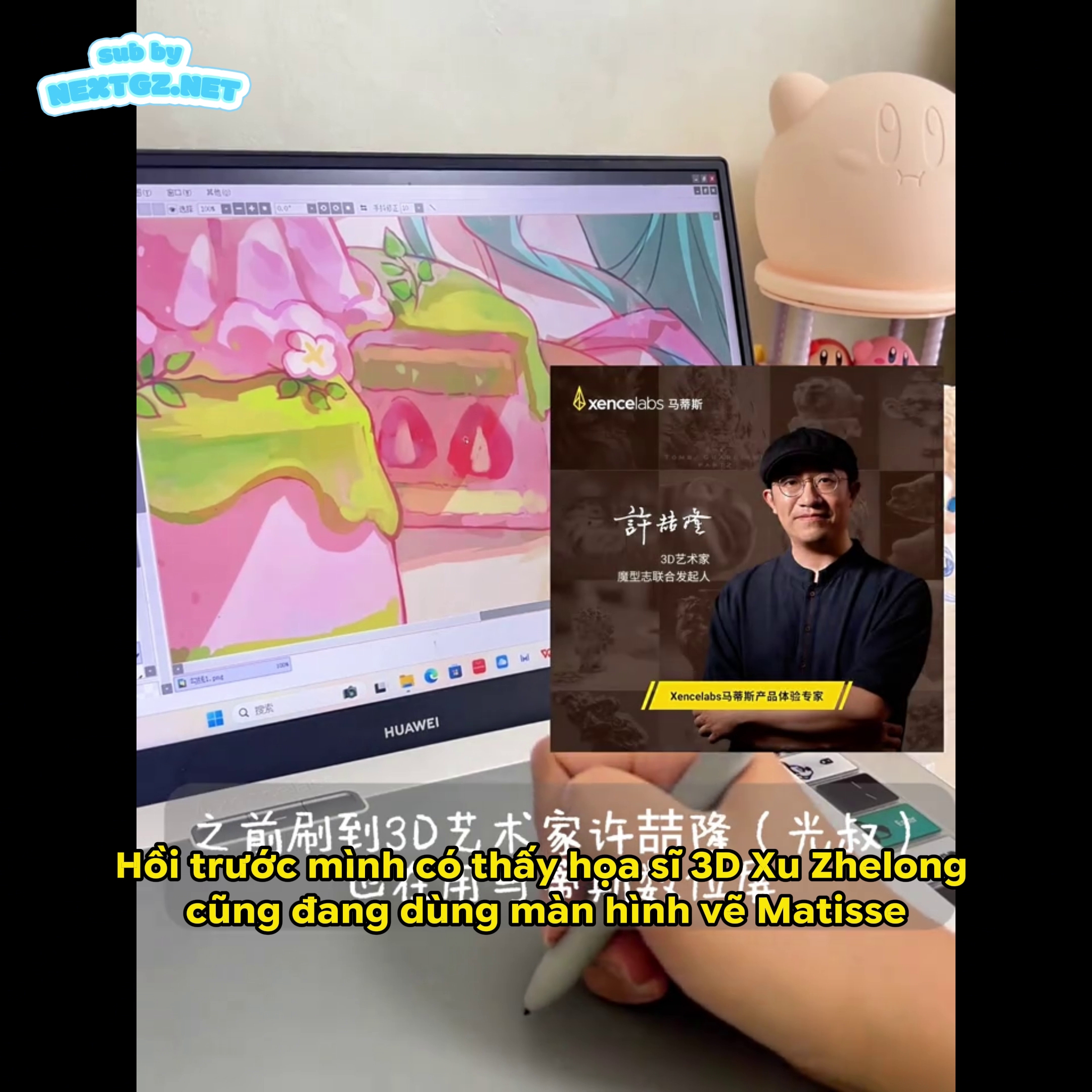
The Matisse tablet offers equivalent or better value compared to Wacom tablets in the same price range. While Wacom has a long history and stable drivers, Matisse offers better wireless connectivity and flexibility.
With Huion
Compared to Huion, Matisse has a better surface feel and stroke smoothness is considered superior. However, Huion has better integrated pen display options.
With XP-Pen
XP-Pen has tablets with very similar features, but Matisse stands out with its OLED screen wireless controller.
Ergonomics and Drawing Posture
Correct Sitting Posture
When using the Matisse tablet, it is very important to maintain correct sitting posture:
Straight spine
Supported arms
Tablet placed at an angle of about 20 degrees
Tablet Height
The tablet should be placed at a height where your forearm is parallel to the work desk. This reduces strain on the shoulders, neck, and back.
Care and Maintenance
Stylus Pen Nibs
The nibs (pen tips) will gradually wear down over time. The Matisse tablet comes with replacement nibs, and they are very easy to replace.
Surface Cleaning
Keeping the tablet surface clean is important:
Use a slightly damp soft cloth
Avoid using strong chemicals
Clean after each drawing session to prevent dirt buildup
Financial Aspects
Value for Money
The Matisse tablet offers excellent value for money. At a moderate price, you get a professional device with premium features like wireless connectivity and customizable controls.
Long-Term Investment
If you are serious about digital art, then the Matisse tablet is a good investment. It is built to last, and regular software updates will ensure compatibility with new software versions.
Ideal Use Cases
For Beginners
The Matisse tablet is an excellent choice for beginners because:
Easy to install and use
Not as complex as high-end tablets
Provides enough features to develop skills
For Professionals
Professionals will also like Matisse because:
Đánh giá bài viết
Ideation, color & technique assistant for artists
Chia sẻ NextGZ, nhận hoa hồng từ mỗi đơn hàng
Phù hợp cho blogger, creator, học viên và cộng đồng yêu thích tiếng Trung, digital art.
More from author
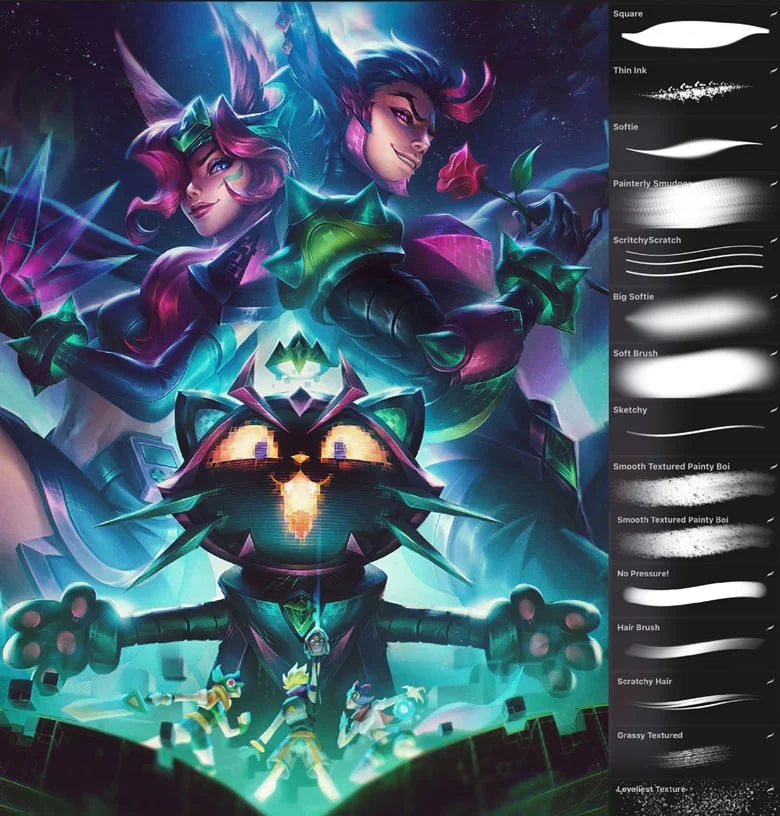
Zoe's Brushes for Procreate
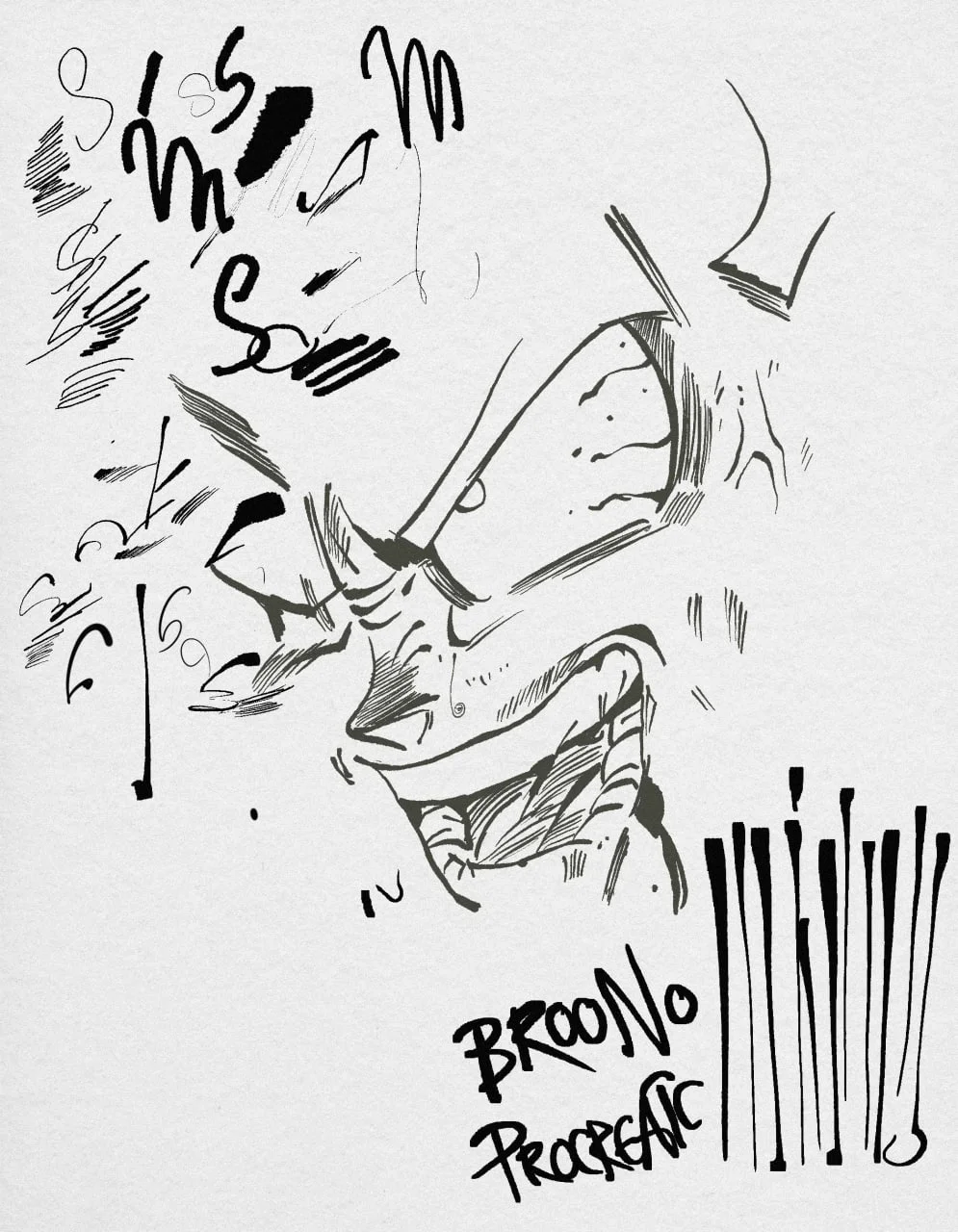
Toriyama Style Manga Brush for Procreate
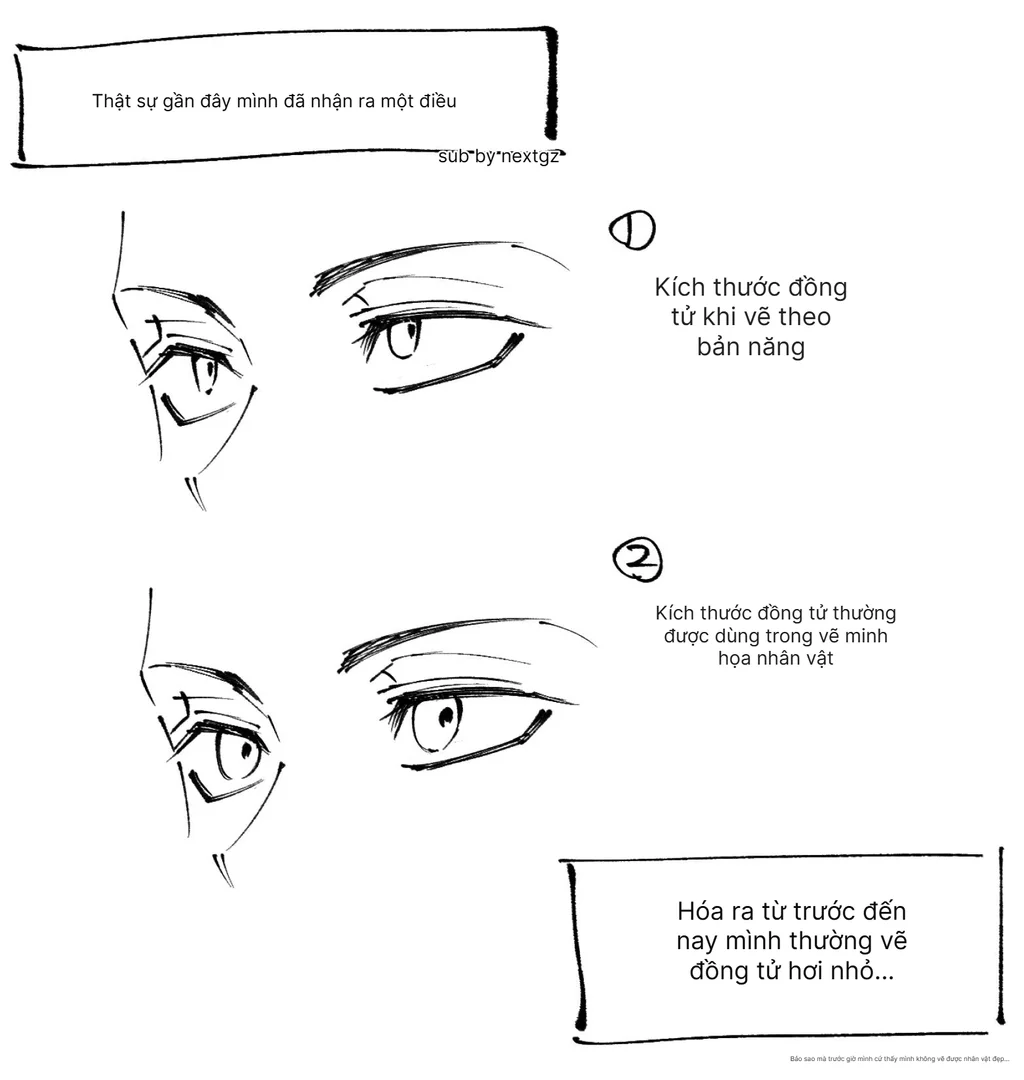
Cách vẽ đồng tử mắt anime đẹp hơn: vì sao kích thước đồng tử quyết định thần thái nhân vật
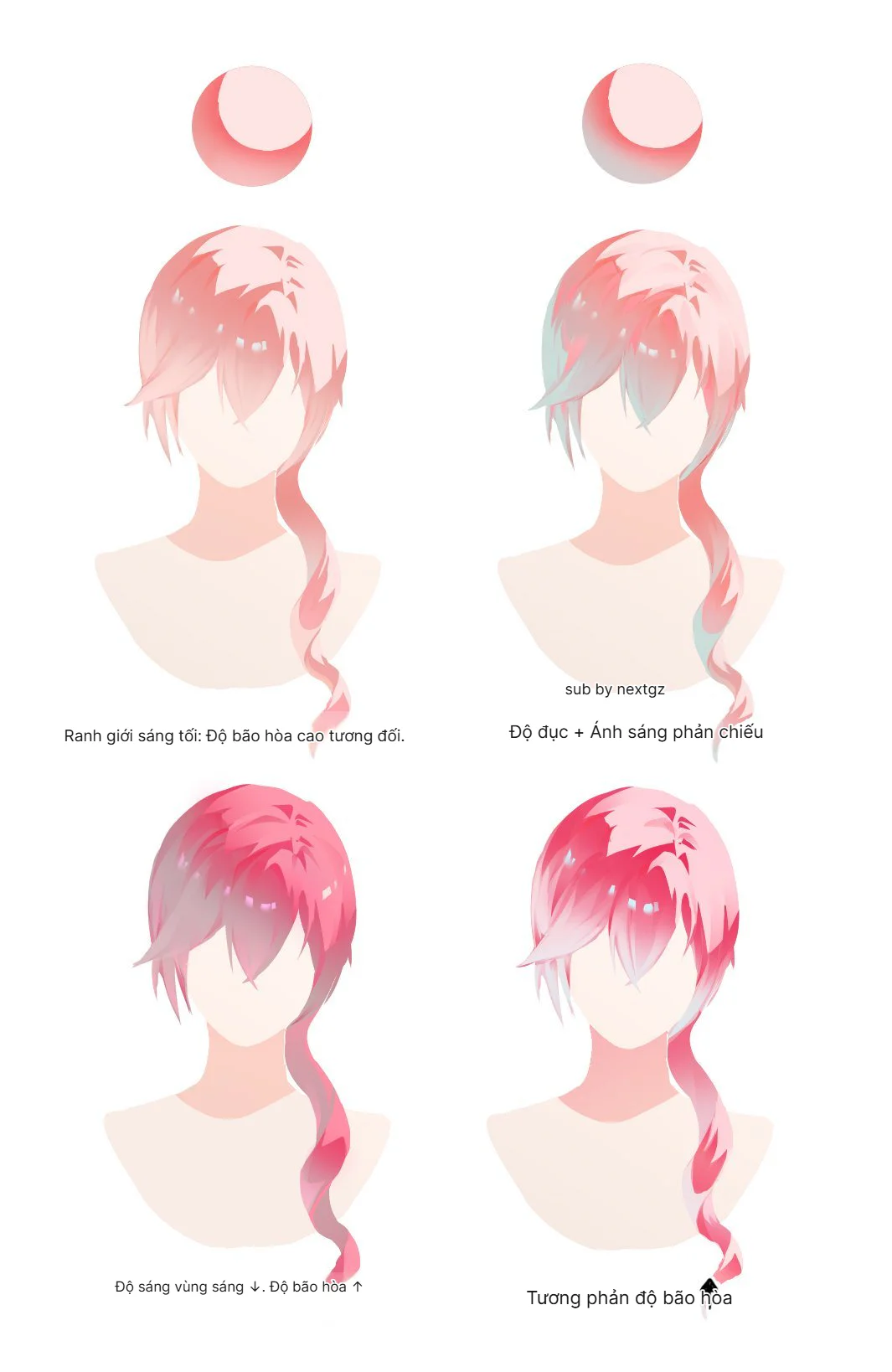
Cách tô tóc anime hồng bằng tương phản độ bão hòa: tóc trong, mềm và nổi màu hơn
You might also like
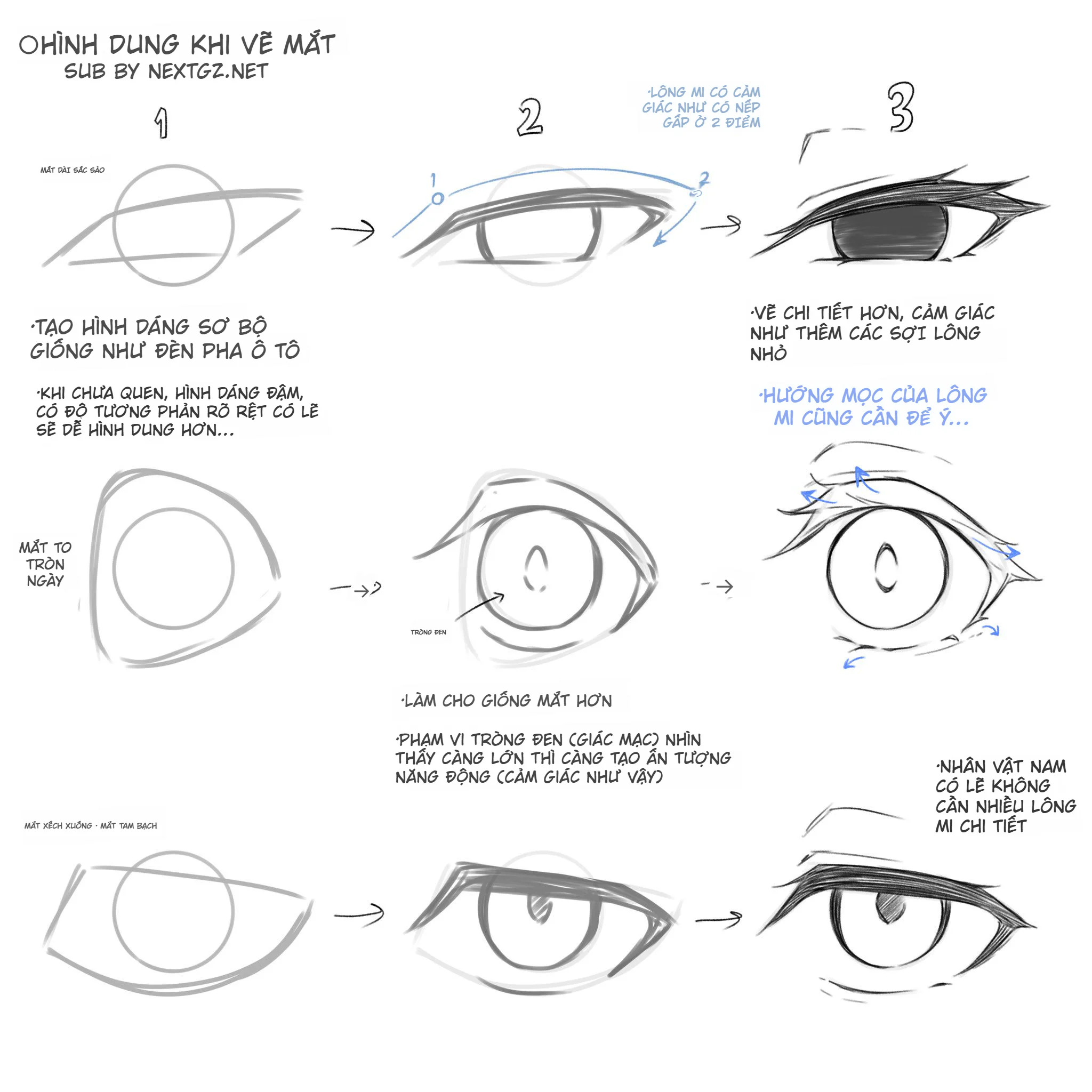
Hướng Dẫn Toàn Diện: Kỹ Thuật Dẫn Dắt Thị Giác Trong Minh Họa Số
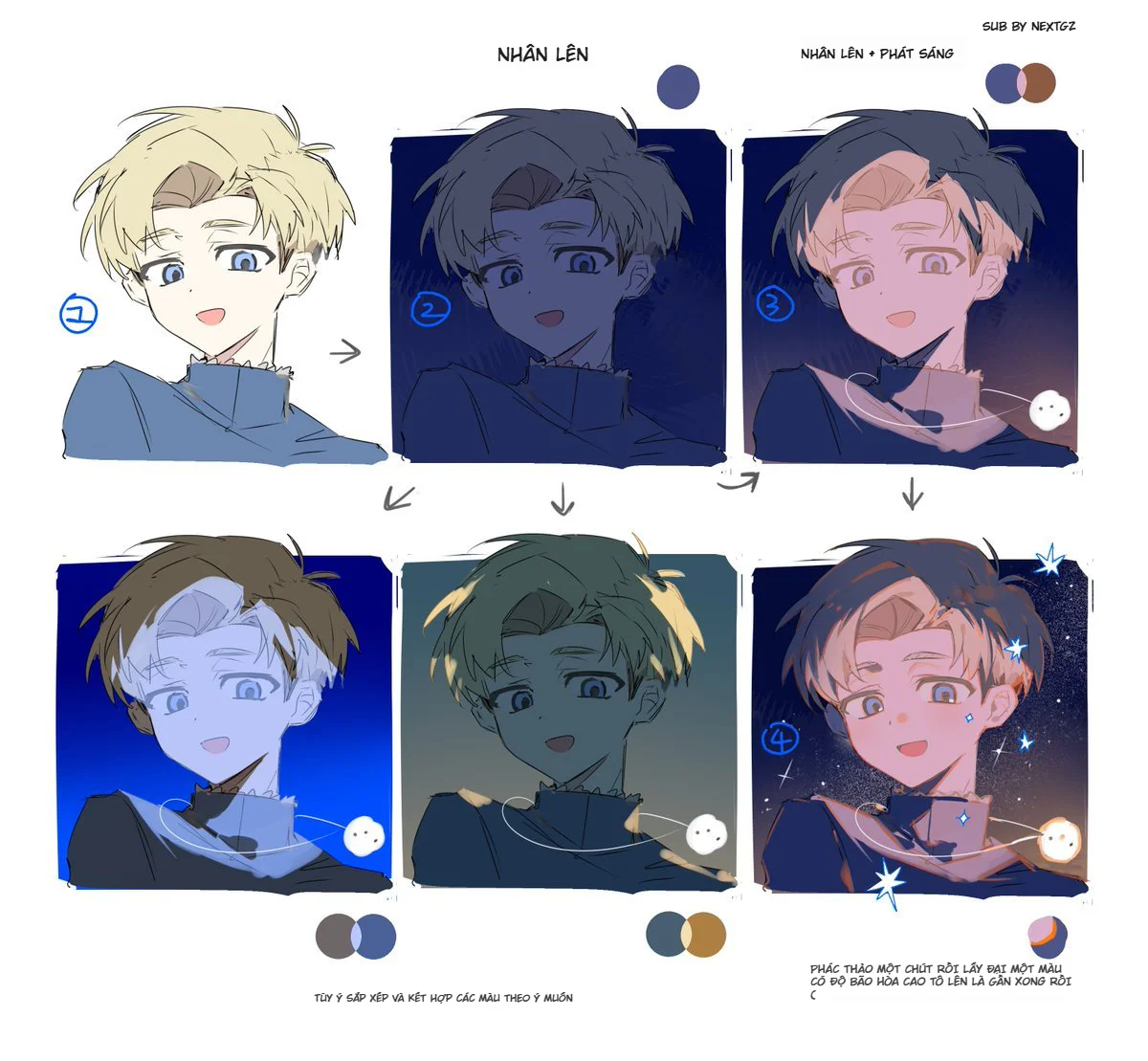
Tip Tô Màu “Mood Đêm” Siêu Nhanh (Không Cần Vẽ Lại Từ Đầu)
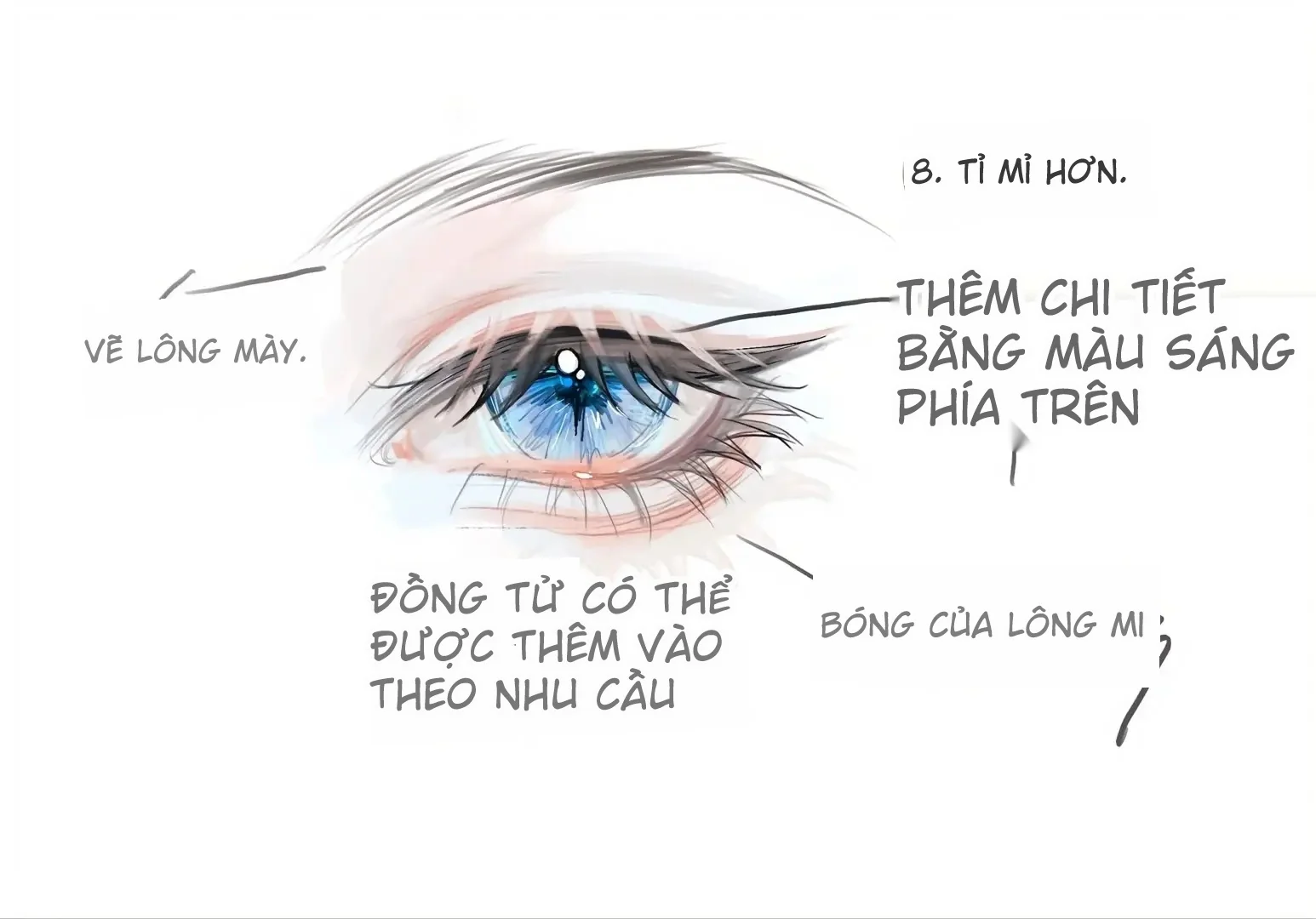
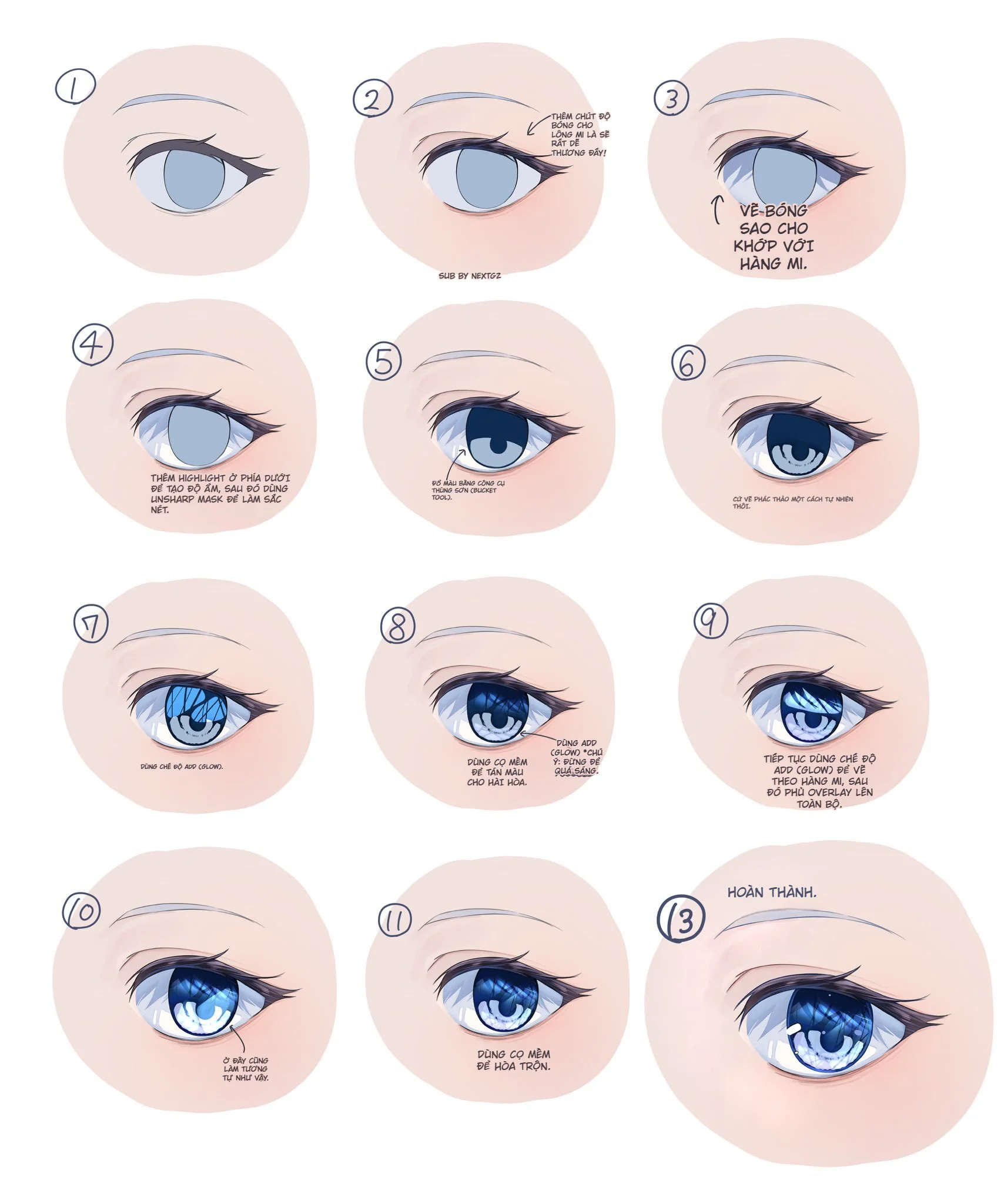
Cách vẽ mắt tuyến tính và lên màu kiểu “trong veo”





Bình luận
0 bình luận
Đăng nhập để tham gia thảo luận cùng cộng đồng!
Đăng nhập ngayĐang tải bình luận...