What Do You Need to Start Digital Art? Devices, Software, and Budget by 4 Levels
Guide to choosing equipment, software, and budget to start drawing Digital Art according to four levels, from utilizing an existing computer to a tablet or pen display.
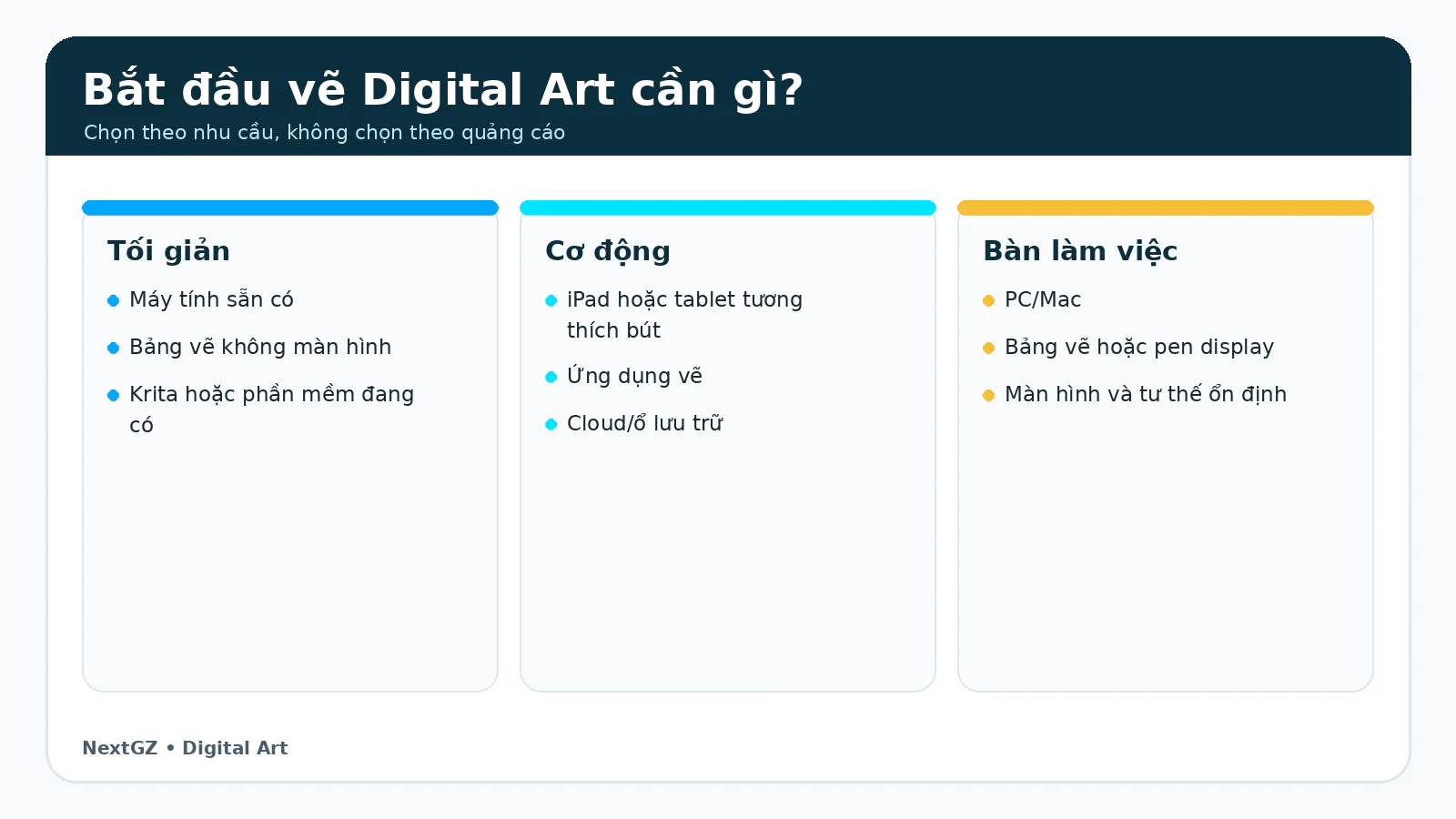
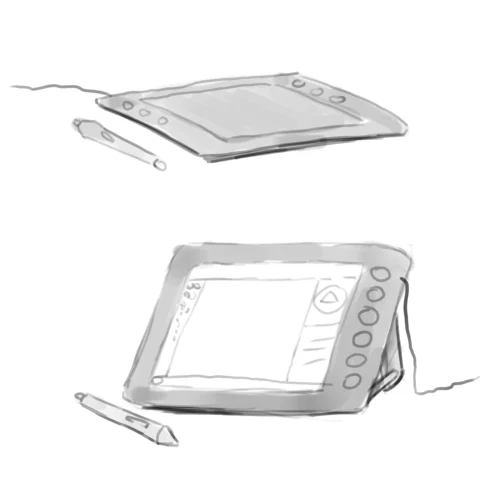
Three popular device setups for beginners learning Digital Art. Designed by NextGZ.
To start creating Digital Art, you don’t need to buy the most expensive equipment right away. You need a stable input system consisting of your current device, a suitable pen or tablet, software that meets your needs, and a safe place to save files. The best choice is the one that makes you sit down and practice regularly, not the one with the most advertised specs.
This article divides devices by usage and four budget levels. Prices vary by time, promotions, and market; so the levels below are allocation frameworks, not fixed price lists. Before buying, check prices in Vietnam, official warranty, connection ports, and compatibility with your current machine.
Quick conclusion
If you already have a laptop or desktop, a pen tablet is usually the most cost-effective way to start. If portability is a priority and you already have a tablet with good pen support, use that device before buying more. A pen display is suitable when you know you need to draw directly on a screen and accept the cost, cables, and desk space.
Three ways to start: pen tablet, pen display, and standalone tablet
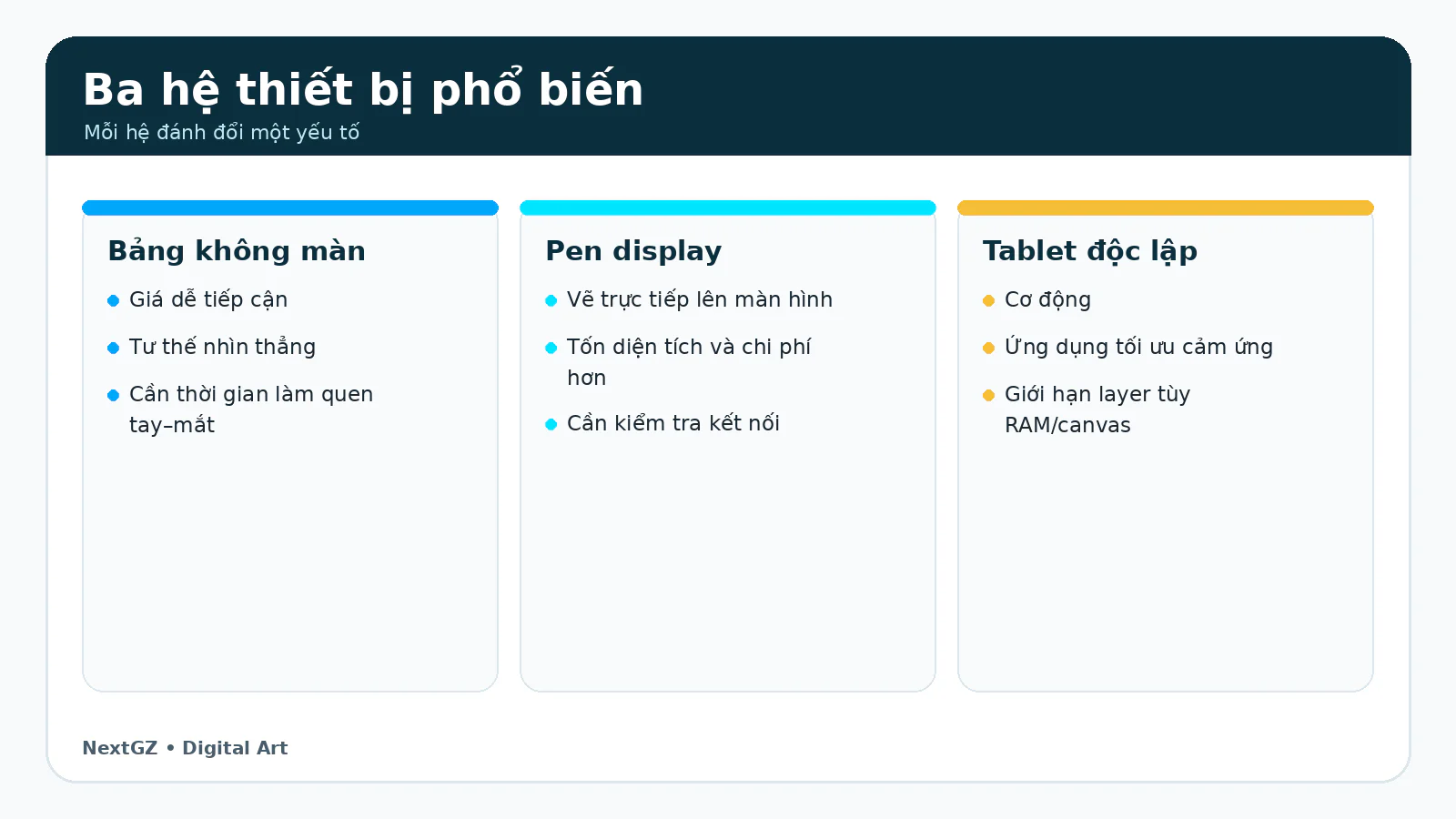
Comparison of advantages and trade-offs of the three device systems. Designed by NextGZ.
Pen tablet
This is a tablet that receives input from a pen but does not display an image. You look at your computer screen while drawing on the tablet surface. The biggest advantages are affordable price, low heat generation, pens that often don't need charging (in many models using electromagnetic resonance technology), and a straight-ahead posture that can be better than hunching over a screen for long periods. The point to get used to is hand-eye coordination; most beginners need a few days to a few weeks to make the movements feel natural.
Pen display
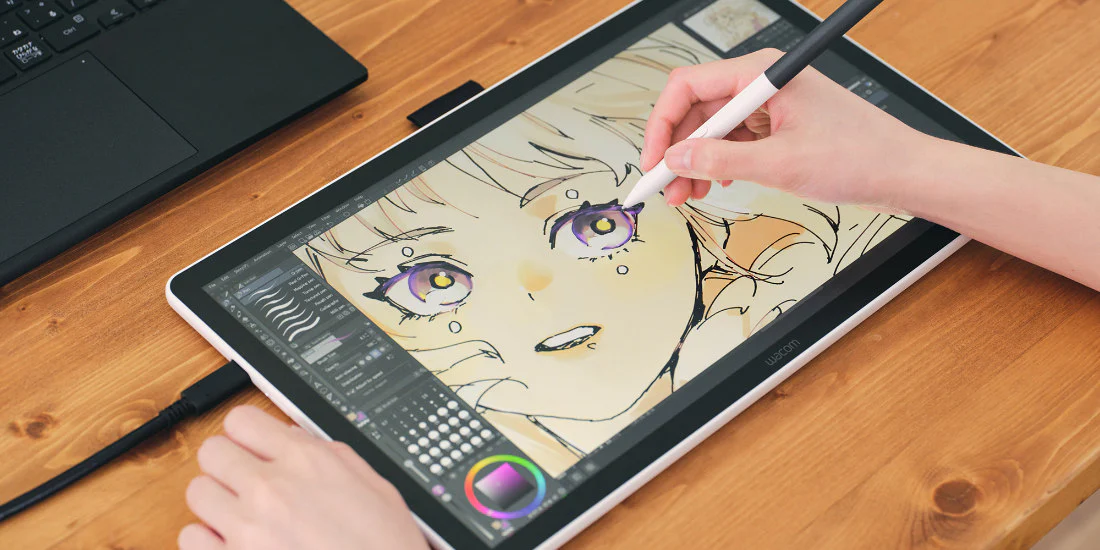
A pen display is a monitor with a pen, connected to your computer. The direct drawing feel is usually easier to understand, but you need to check desk size, stand height, USB-C/HDMI ports, power supply, drivers, and screen color. The current Wacom One line has various screen models; the official Wacom One 14 page states a 14-inch screen, battery-free pen, anti-glare surface, and compatibility with Windows, macOS, and ChromeOS. These specs only describe the product, they don’t automatically prove it’s better than every other option.
Standalone tablet
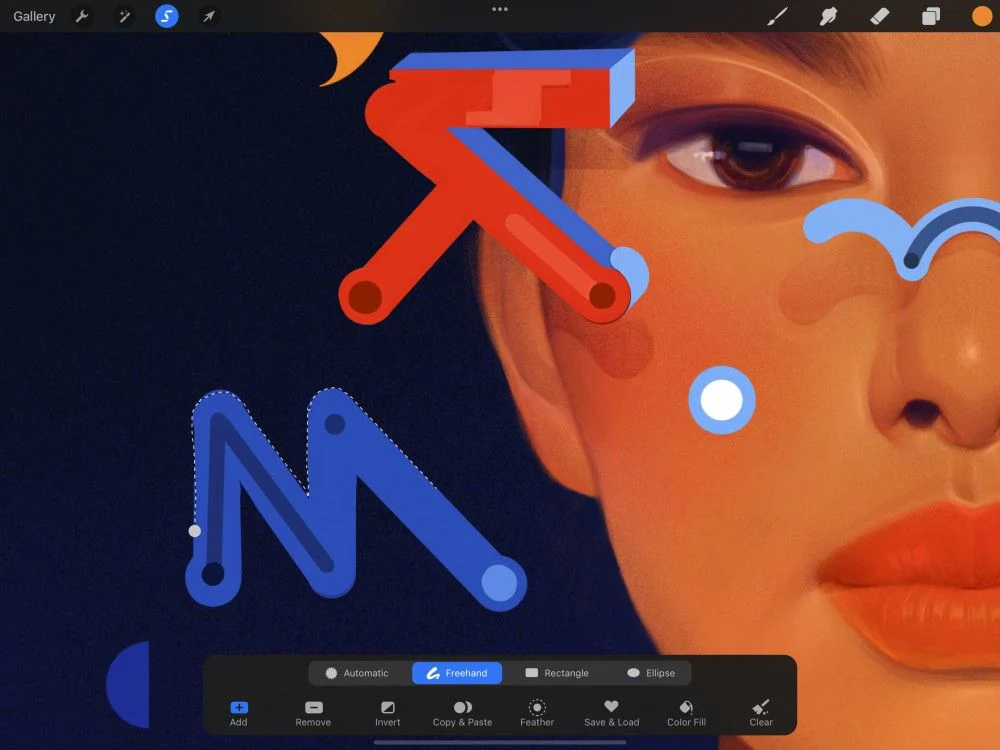
An iPad or a tablet with pen support lets you draw without a PC, suitable for learning in multiple locations and using touch gestures. In return, storage capacity, RAM, layer limits, pen cost, and applications need to be factored into the total cost. In Procreate, canvas size and number of layers depend on the iPad model, RAM, and document pixel count; the larger the canvas, the fewer layers are usually available.
Level 1: Use existing equipment, budget from nearly zero to 2 million VND
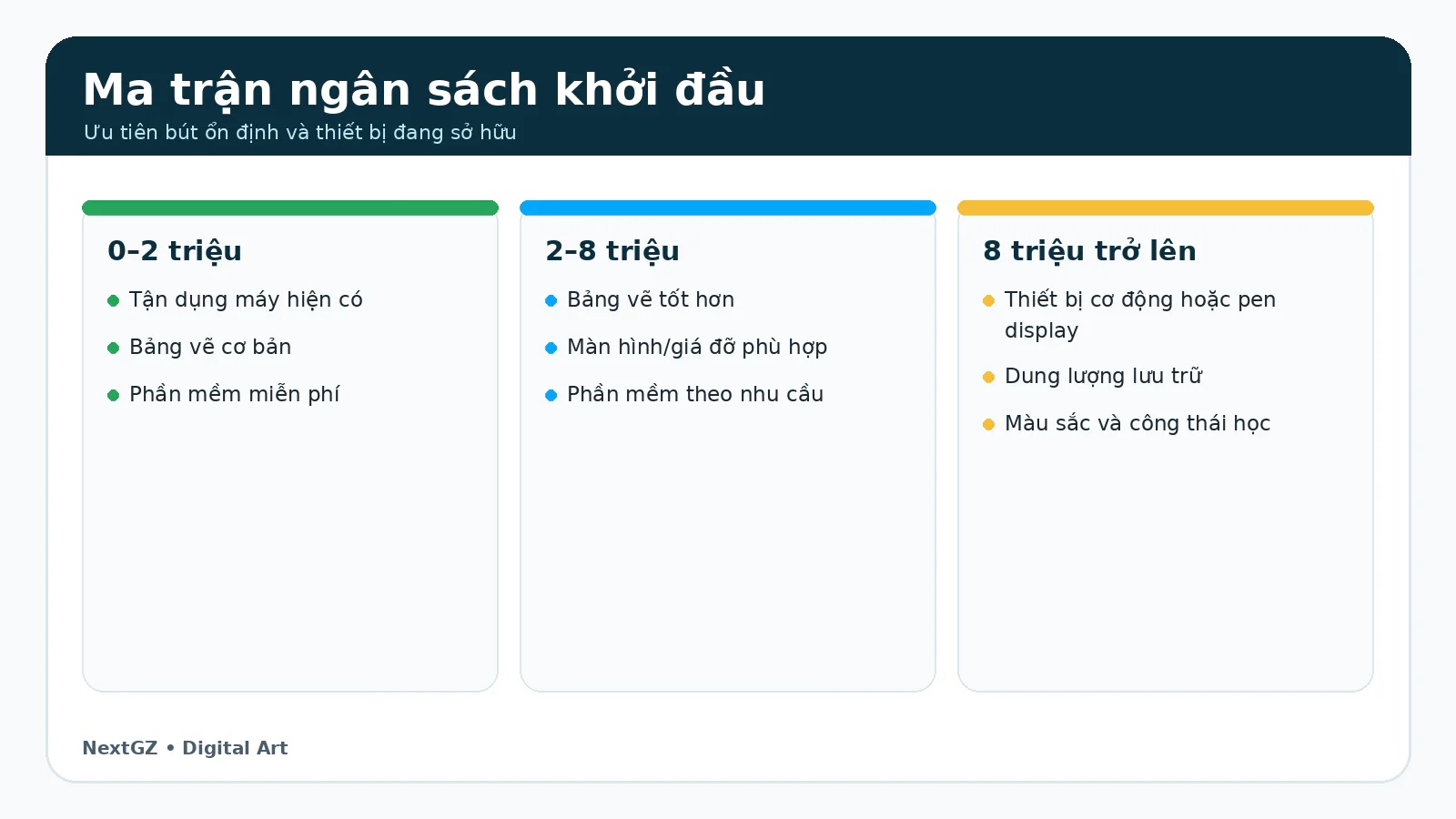
Initial budget allocation framework based on usage needs. Designed by NextGZ.
If you already have a stable computer, prioritize a basic pen tablet with an active area large enough to use comfortably. Don’t chase extremely high pressure levels; stable drivers, a pen that doesn’t skip strokes, reasonable pen detection distance, and a size matching your screen are more important. With a 24–27 inch monitor, a tablet that is too small can make the cursor move very fast and require more precise wrist movements.
Software can start with Krita, ibisPaint on a suitable device, or software you already own legally. The goal of this budget level is to test your habit: can you practice at least three times a week for 6–8 weeks? Only upgrade when you’ve identified a specific bottleneck, such as too small a drawing area, lack of portability, or severe color inaccuracy on your current screen.
Level 2: Around 2–8 million VND
At this level, you can choose a pen tablet with a more comfortable size, invest in a monitor stand, chair, desk lamp, and external storage; or buy a used/refurbished tablet that suits your needs after checking its pen, battery, and screen. Don’t put all your money into a tablet and then neglect a computer that is too weak. Files with many layers, large canvases, and brush textures can require significant RAM and storage.
One often overlooked upgrade is ergonomics. A stand helps bring the screen to eye level, a compact keyboard and well-placed shortcuts can improve work time more than switching to a tablet with higher pressure specs. If you work on a laptop, an external monitor isn’t mandatory right away, but check brightness, viewing angles, and color on at least one other device before posting.
Level 3: Around 8–20 million VND
This budget range opens up newer standalone tablets or entry-level pen displays. Choose based on your workflow. People who frequently move around, take notes, and draw in various places may prioritize a standalone tablet. Those who work long hours at a desk, using Photoshop, Clip Studio Paint, Blender, or many reference windows, may be better off with a PC/Mac and a pen display.
Before buying a pen display, check whether it uses one cable or multiple, power delivery, resolution, surface coating, parallax, stand, and button placement. Before buying a tablet, check the compatible pen model, actual remaining storage capacity, battery replaceability, and any apps you need to purchase. Don’t choose based solely on a few minutes of unboxing videos.
Level 4: Over 20 million VND — invest based on work, not emotion
When the budget is higher, the question is no longer “which device is the most powerful” but “which device reduces time and risk in your work.” Print artists need to care about color management and screen calibration; illustrators with many layers need RAM and storage; concept artists may need a GPU for 3D; webtoon artists need a vertical screen, shortcuts, and page management.
Set aside budget for backups. An external SSD or a cloud service with file versioning often provides more real value than decorative accessories. The minimum rule is: have the working file, one other local copy, and one copy off the main device for important projects.
Windows, macOS, or iPadOS?
OS
Strengths
Points to check
Windows
Many hardware, driver, and software options; easy to upgrade PC
Screen quality and drivers vary by device
macOS
Stable environment, good color management and ecosystem across many models
Upgrade cost, connectivity ports, and repairability
iPadOS
Portable, excellent touch response, Procreate and many pen-optimized apps
Layer/canvas limits per device, storage, and file workflow
Android/ChromeOS
Wide price range, some devices with good pen support
Apps, drivers, latency, and compatible pen need to be checked per model
No operating system will make your art look better for you. Choose based on required software, devices you already own, file exchange methods, and your working environment. If your team uses complex PSDs, try a real file before switching your entire workflow to another app.
Free and paid software
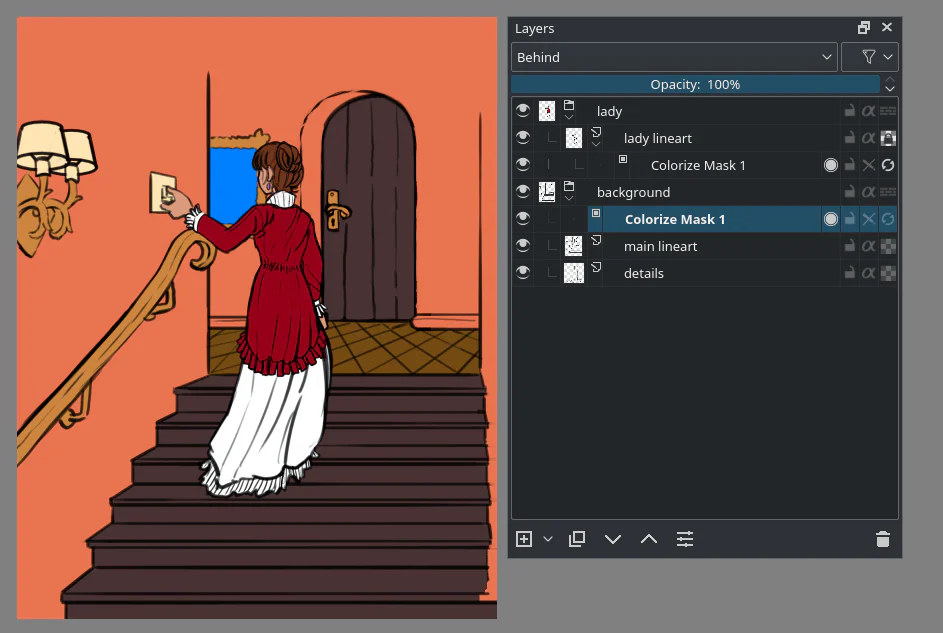
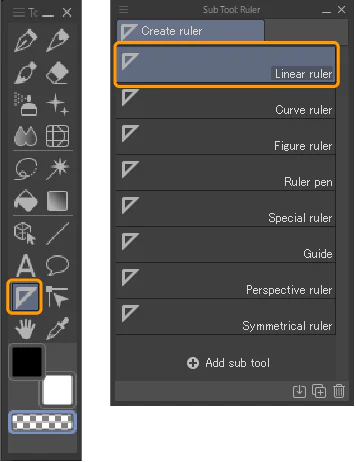
Krita is suitable for starting digital painting on a computer and has a powerful brush system. Clip Studio Paint excels at line art, comics, webtoons, vector layers, rulers, and project management; you can read the article Learn Clip Studio Paint Basics: A Complete Beginner’s Guide. Procreate has an interface optimized for iPad and is purchased according to the current App Store policy in your region. Photoshop is suitable when you need an editing ecosystem, PSD, and studio workflows, but it is not a requirement for learning fundamentals.
Don’t install five pieces of software and learn them all at once. Pick one main software for 60 days. Only switch when you have a specific need that your current software doesn’t handle well. Knowledge of form, value, anatomy, color, and composition is transferable between software.
Minimum config: what should you prioritize?
RAM: enough for your canvas, layers, and reference apps; the larger the file, the higher the demand.
Storage: prioritize SSD and always leave free space for cache, autosave, and file versions.
Screen: stable viewing angles, moderate brightness, and at least a reasonable color profile.
Ports: check if USB-C supports video or just data; prepare an adapter if needed.
Drivers: download from the manufacturer’s website, check support for your current OS.
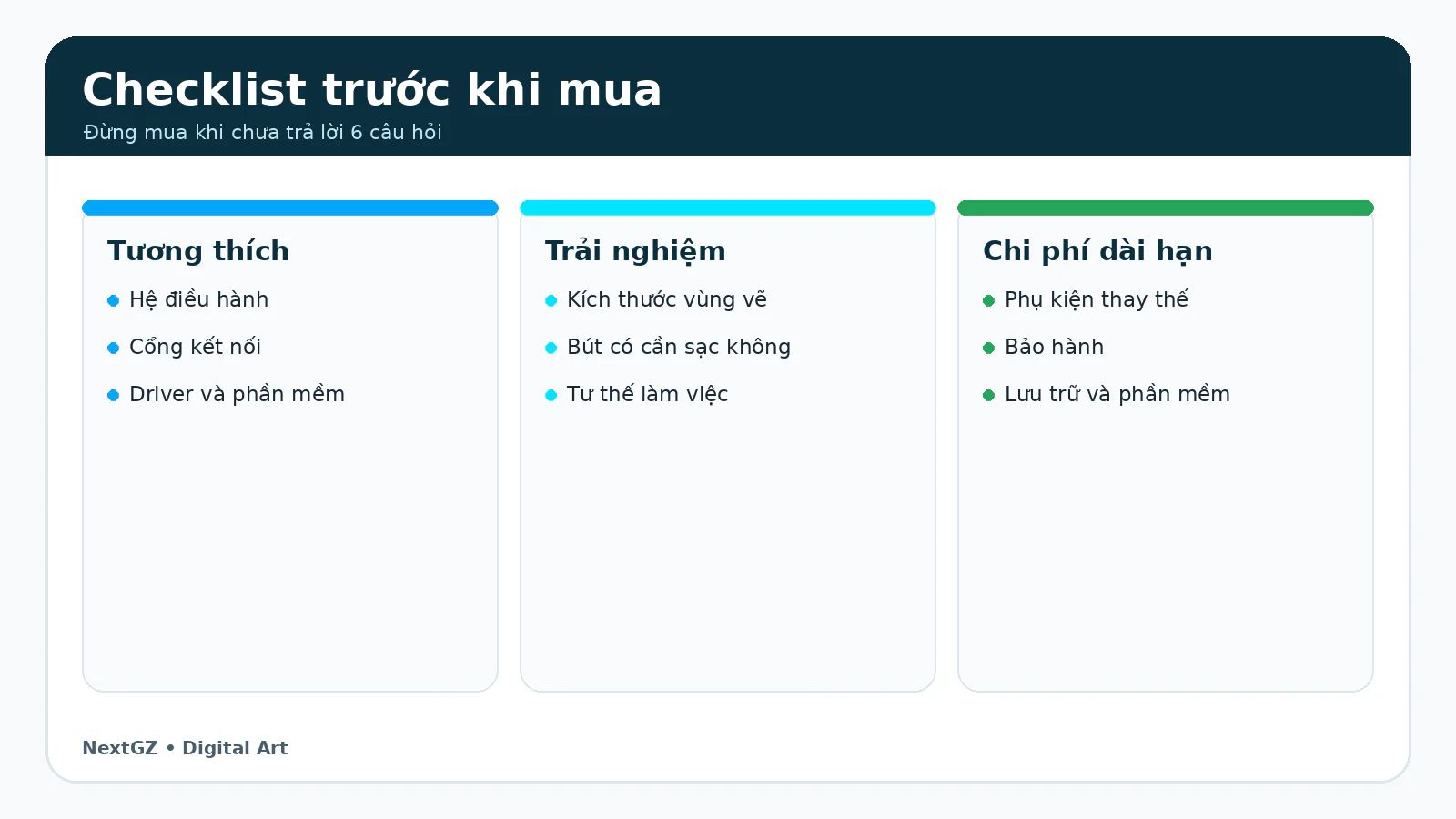
Checklist for buying equipment to avoid waste
Equipment purchase checklist to avoid waste. Designed by NextGZ.
Write clearly where you will draw: at a fixed desk, at school, in a coffee shop, or on the go.
List required software and supported operating systems.
Measure your desk area and determine the screen–tablet posture.
Check whether the pen needs charging, replacement nibs, and accessory prices.
Check connection ports, included cables, and power supply.
Read the warranty policy in Vietnam, not just the global warranty mentioned in ads.
Test drivers, pressure sensitivity, and stability if the store allows.
Set aside budget for backup and a stand rather than spending it all on a higher model.
Specs you shouldn’t read in isolation from real-world experience
A high number of pressure levels doesn’t automatically mean better strokes. Report rate, tilt, accuracy, and latency all need to be viewed within the entire system of driver, software, computer, and pen. A screen with a wide color gamut also doesn’t guarantee accurate colors if the profile, brightness, and viewing environment aren’t managed.
For beginners, three more practical criteria are: strokes are not cut off or jumpy, the drawing area is comfortable enough, and the device does not create a barrier that makes you hesitate to open it and practice.
Suggested setups for four user types
Who are you?
Recommended setup
Don’t buy right away
Student with a laptop
Pen tablet + Krita/CSP as needed
Large pen display, dedicated color monitor
Frequent mover
Tablet with pen support + main app + cloud
Many fixed desk accessories
Comic/webtoon artist at a desk
PC/Mac + pen tablet/pen display + CSP
Standalone tablet if you don’t need portability
Beginner unsure about long-term commitment
Borrow/try equipment or a basic pen tablet
Full ecosystem upgrade
Frequently asked questions
Can I create Digital Art with a mouse?
You can learn some concepts, adjust shapes, and do pixel art, but a mouse is not a convenient choice for practicing natural strokes. If your budget doesn’t allow it yet, start with exercises on shape, value, and composition, while saving up for a basic tablet.
Is a small pen tablet enough?
It’s enough for many people, especially those with small desks and laptops. However, a very small tablet combined with a large monitor can make hand movements more sensitive. Try mapping it to a portion of the screen, or choose a medium size if you often draw from your elbow and shoulder.
Do I need a color-calibrated monitor right away?
Not in the first week, but you should cross-check colors on another device and avoid having the screen too bright. When doing print work, advertising, or professional delivery, color management becomes a real requirement.
Can an iPad replace a computer?
It depends on your workflow. An iPad can cover the entire process for many illustrators, but projects that require desktop software, plugins, fonts, 3D, or complex file management may still need a computer.







Bình luận
0 bình luận
Đăng nhập để tham gia thảo luận cùng cộng đồng!
Đăng nhập ngayĐang tải bình luận...