Vector Eraser can erase up to intersections, helping edges created by Smart Shape stay cleaner without manual pixel trimming.
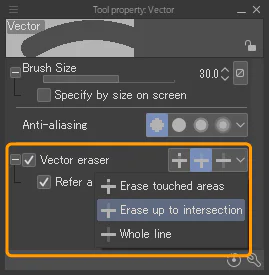
When two vector lines intersect, Vector Eraser has an erase-to-intersection mode. This is a fast way to make windows, frames, mechanical objects, panel lines, and props. The artist only needs to drag over the excess; the software erases to the nearest intersection.
Check that the intersection actually exists. If two lines only look like they touch but the vector paths do not intersect, the erase result can differ from what you expect. Zoom in or use the Object tool to see the control points.
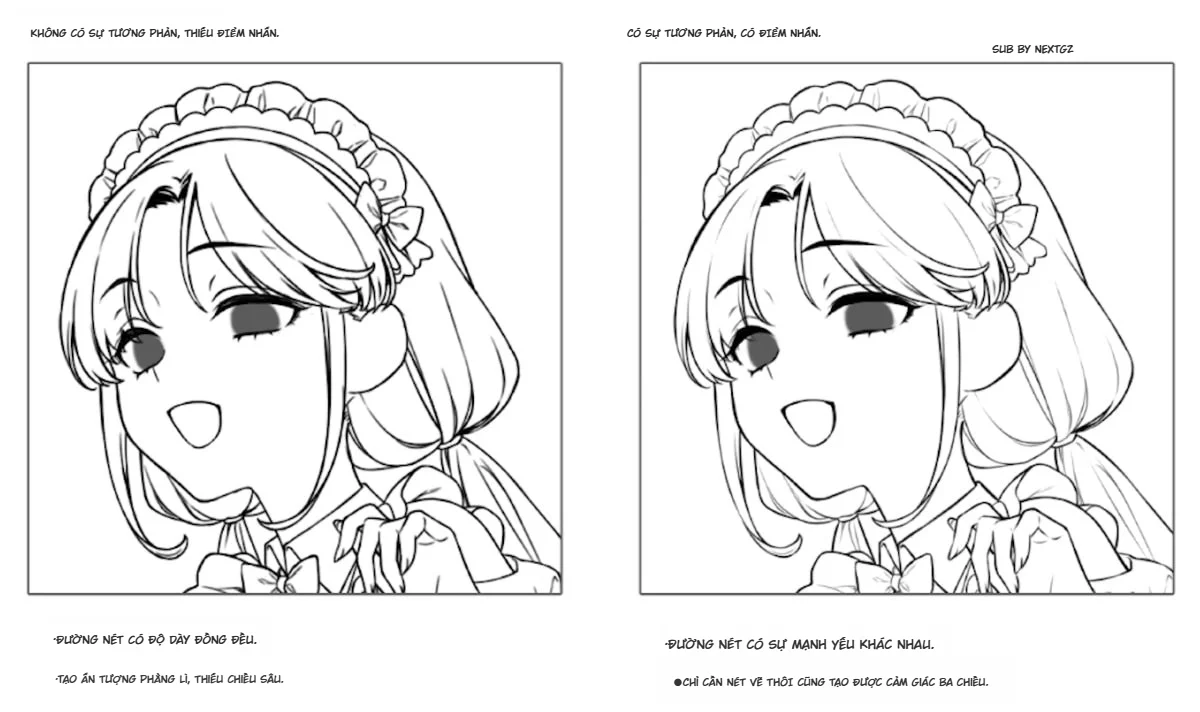
This workflow is faster than a raster eraser, but line weight still needs to be checked at thumbnail size. Corners that are too uniform can make a background feel cold; sometimes keeping a bit of stroke variation is more natural.
Combining Smart Shape with Perspective Ruler
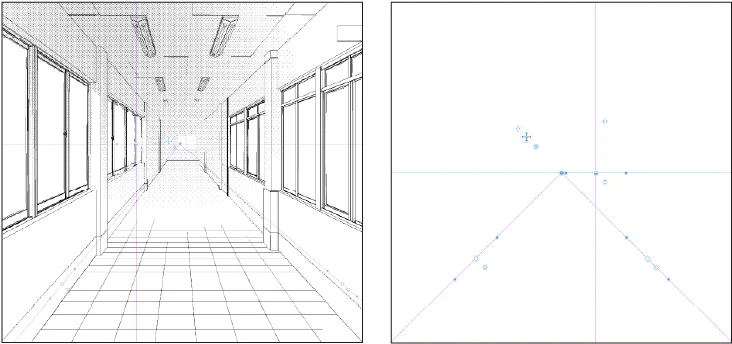
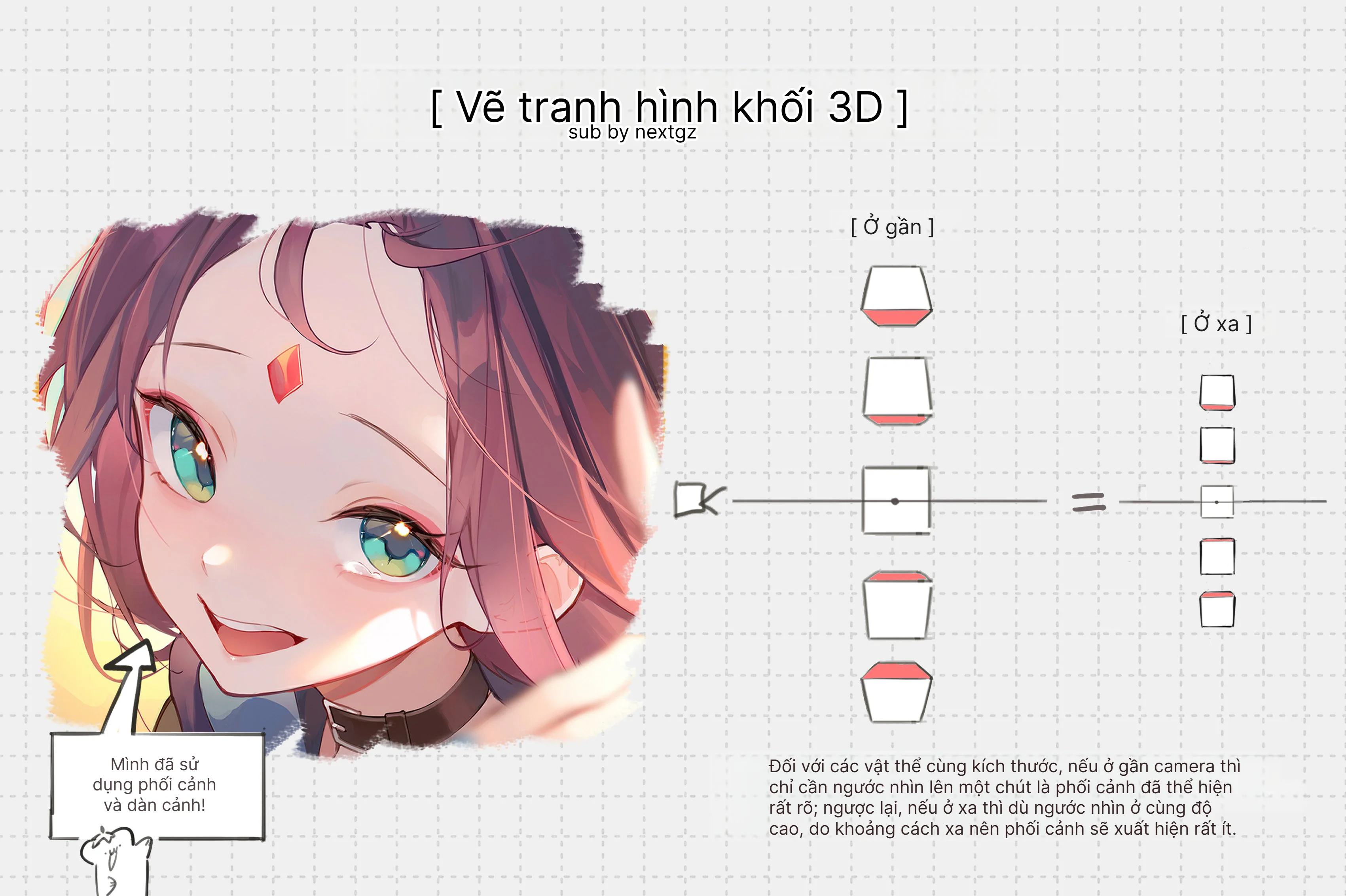
The Perspective Ruler controls vanishing points; Smart Shape cleans up shapes; combining the two tools is effective when building backgrounds and props.
The Perspective Ruler guides strokes toward vanishing points. Smart Shape recognizes the shape of the stroke. When used together, the artist can draw edges that follow perspective and then hold the pen to clean them up. However, you need to test brushes because snapping and long-press can interact differently depending on the tool.
A background workflow: create a horizon and vanishing point; block in large volumes with the ruler; use Smart Shape for windows, signs, furniture; switch to a Vector Layer to adjust line weight; add texture and soften distant areas.
Don’t make every edge as sharp as CAD. Anime backgrounds need hierarchy. The foreground has clear, thicker lines; the middle ground is moderate; the background can be light, broken, or blended into the light.
Smart Shape with Watercolor Edge and brush texture
5.0.4 fixes blur quality when Smart Shape uses a brush with Watercolor Edge and Process After Brush Stroke. The blur no longer degrades after the shape is processed. This extends Smart Shape to graphic brushes, decorative lines, and watercolor-style borders.
Even so, overly clean geometry combined with strong texture can create repeating edges. Test brush size, opacity, and edge at 100% as well as at export size. If the texture gets distorted at corners, split the shape or apply a layer-level effect afterward.
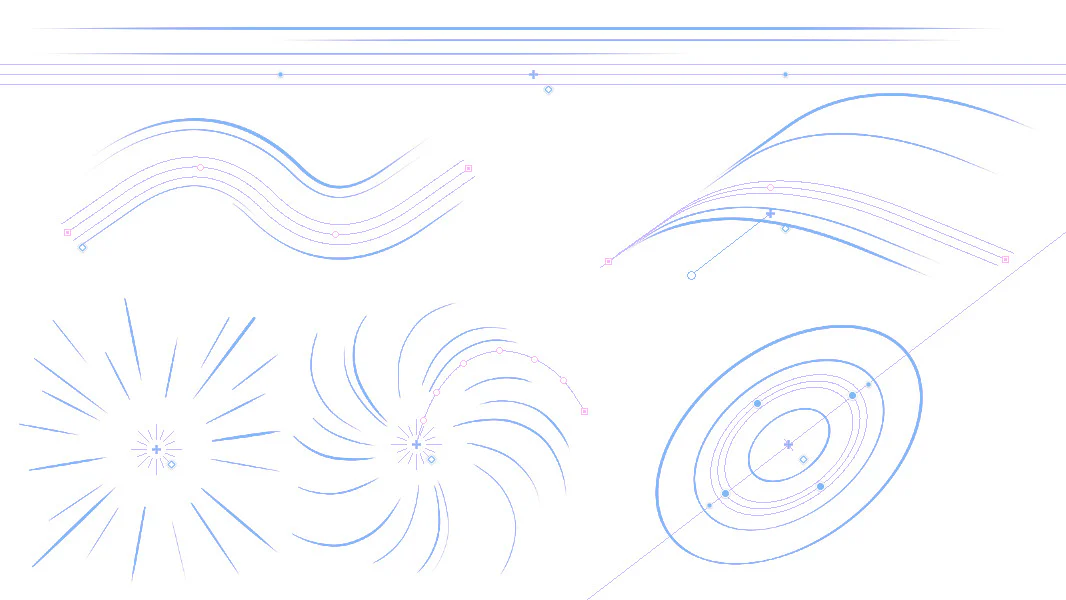
Balloon, frame borders, focus lines, and speed lines
In PRO/EX, 5.0.4 improves Smart Shape with Balloon Pen, Frame Border Pen, Focus Lines, and Speed Lines. The start/end control points of continuous curves, polylines, straight lines, and curves are handled more sensibly; balloons can be created outside the canvas; Undo no longer shifts text; adjusting focus lines does not create extra layers.
This is a practical manga production upgrade. The artist can draw a balloon by hand, let Smart Shape clean up the form, then adjust the vector and text. With frame borders, you still need to keep bleed, safe area, and page rhythm in mind.
Suggested shortcuts and Quick Access
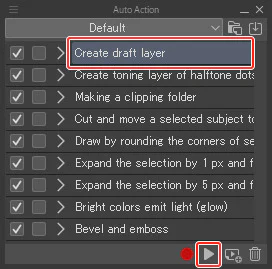
Quick Access and Auto Action can group repeated operations to speed up workflows involving Smart Shape, Vector Layers, and file export.
Put the Object tool, Correct Line, Vector Eraser, Perspective Ruler, Toggle Snap, Smart Shape settings, and Edit Shape into Quick Access. Assign memorable shortcuts for Object and Eraser. Avoid assigning too many combinations that force your hand to keep leaving the pen.
If a repeated workflow consists of creating a Vector Layer, changing brushes, enabling a ruler, and setting a color, Auto Action can build the initial structure. But Smart Shape still requires the artist to check each shape; don’t automate visual decisions.
Common mistakes
Smart Shape activates unintentionally
Increase the long-press time or turn it off on expressive brushes. Don’t hold the pen too long at the end of a stroke if you don’t want recognition.
Shape is recognized incorrectly
Reduce stroke complexity, draw a clearer silhouette, or select the correct type in the launcher. A squiggly stroke should not be forced into a regular polygon.
Lineart becomes too stiff
Only use Smart Shape for props, frames, and geometric details. Keep human lines, hair, fabric, and gestures natural.
Too many control points
Split shapes into multiple simple strokes. Use Correct Line to reduce or adjust points instead of dragging every point in a complex path.
Shift snap breaks perspective
Shift locks the canvas angle; it doesn’t understand vanishing points. Use the Perspective Ruler for lines in space.
30-minute exercise
Draw ten straight lines with a normal brush and with Smart Shape.
Create five rectangles, then adjust one into a square.
Create five ellipses, then turn two into circles.
Use Shift to drag control points at fixed angles.
Draw a phone or small box on a Vector Layer.
Use Vector Eraser to remove excess up to the intersection.
Create a one-point Perspective Ruler and build a table.
Shrink the canvas to check line weight.
The goal is not to create a complete illustration but to understand when Smart Shape helps you work faster and when natural hand-drawn strokes are better.
Checklist before using in production
Long-press doesn’t trigger too early.
The brush keeps its texture, taper, and opacity.
Shift snap works correctly in edit mode.
Undo/Redo doesn’t leave wrong strokes or a launcher behind.
The Vector Layer has a reasonable number of control points.
The Perspective Ruler and snap don’t conflict.
Balloons and frames maintain correct page layout.
Line weight is checked at export size.
Smart Shape isn’t overused on organic lineart.
Frequently Asked Questions
Is Smart Shape available in Clip Studio Paint PRO?
Yes. Smart Shape is a feature in all grades of Ver. 5.0; some improvements to Balloon, Frame Border, and vector production apply to PRO/EX.
Since which version has Shift snap been available?
The ability to hold Shift to snap to fixed angles in edit mode was added in 5.0.4.
Can Smart Shape replace the Perspective Ruler?
No. Smart Shape recognizes and adjusts shapes; the Perspective Ruler controls direction according to vanishing points.
Should I use raster or vector?
Raster is suitable for painting and texture. Vector is suitable for lineart that requires adjusting control points, thickness, and intersections.
Should I enable Smart Shape on every brush?
No. Only enable it on shape-building brushes or adjust the hold time according to the purpose.
Conclusion
Smart Shape turns Clip Studio Paint into a faster shape-building environment without forcing artists to abandon their familiar brushes. Version 5.0.4 makes the tool more reliable thanks to Shift snap, accurate shape conversion, a stable launcher, precise control points, and better stroke quality.
The greatest value appears when combining the right tools: Smart Shape for shapes, Vector Layer for editing, Vector Eraser for intersections, Perspective Ruler for space, and hand brush for organic lines. Build a small workspace, test on a separate file, and only automate operations that do not replace visual decisions.






Bình luận
0 bình luận
Đăng nhập để tham gia thảo luận cùng cộng đồng!
Đăng nhập ngayĐang tải bình luận...