Procreate on iPadOS 26: Disable Windowed Apps, Reduce Liquid Glass, and Optimize Drawing Space
Optimize Procreate on iPadOS 26: disable Windowed Apps, enable Full Screen Apps, reduce Liquid Glass, adjust accessibility, check brushes and Apple Pencil after the update.
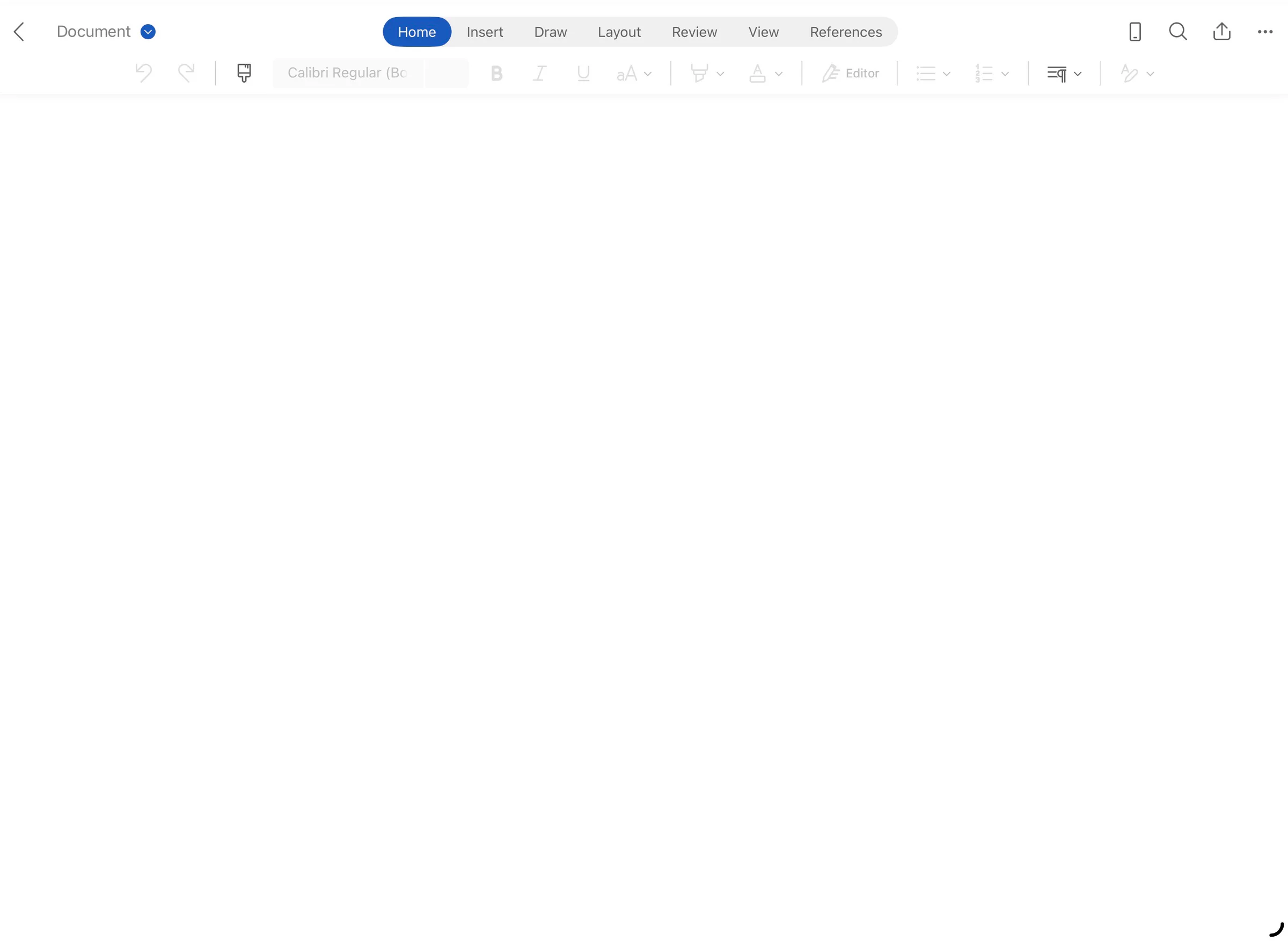
An app running on iPadOS 26 with the new control bar and window area. Photo: Ethanljy/Wikimedia Commons, CC BY-SA 4.0.
iPadOS 26 significantly changes how apps display windows and uses the Liquid Glass interface effect, so Procreate may feel completely different after updating even though your brush library and artwork files remain unchanged. Some artists experience canvases no longer taking up the full screen, window bars appearing unintentionally, buttons and panels becoming more transparent, text being hard to read on highly detailed artwork, or multitasking gestures accidentally shrinking the drawing space. This is not necessarily a problem with Procreate files; most of it comes from the new iPadOS system settings.
This guide explains how to configure Procreate on iPadOS 26 in a way that prioritizes canvas space, interface readability, and workflow stability. You will learn how to switch Procreate to Full Screen Apps, reduce transparency effects system-wide or for the app only, set up multitasking deliberately, prepare before upgrading the operating system, check brushes and Apple Pencil after the update, and handle common issues. The goal is not to remove every new feature, but to help you choose the right level of interface modernization without disrupting your drawing work.
What changes for Procreate on iPadOS 26?
iPadOS on three different device sizes; screen area directly affects canvas space and panels. Photo: KA KIT/Wikimedia Commons, CC BY-SA 4.0.
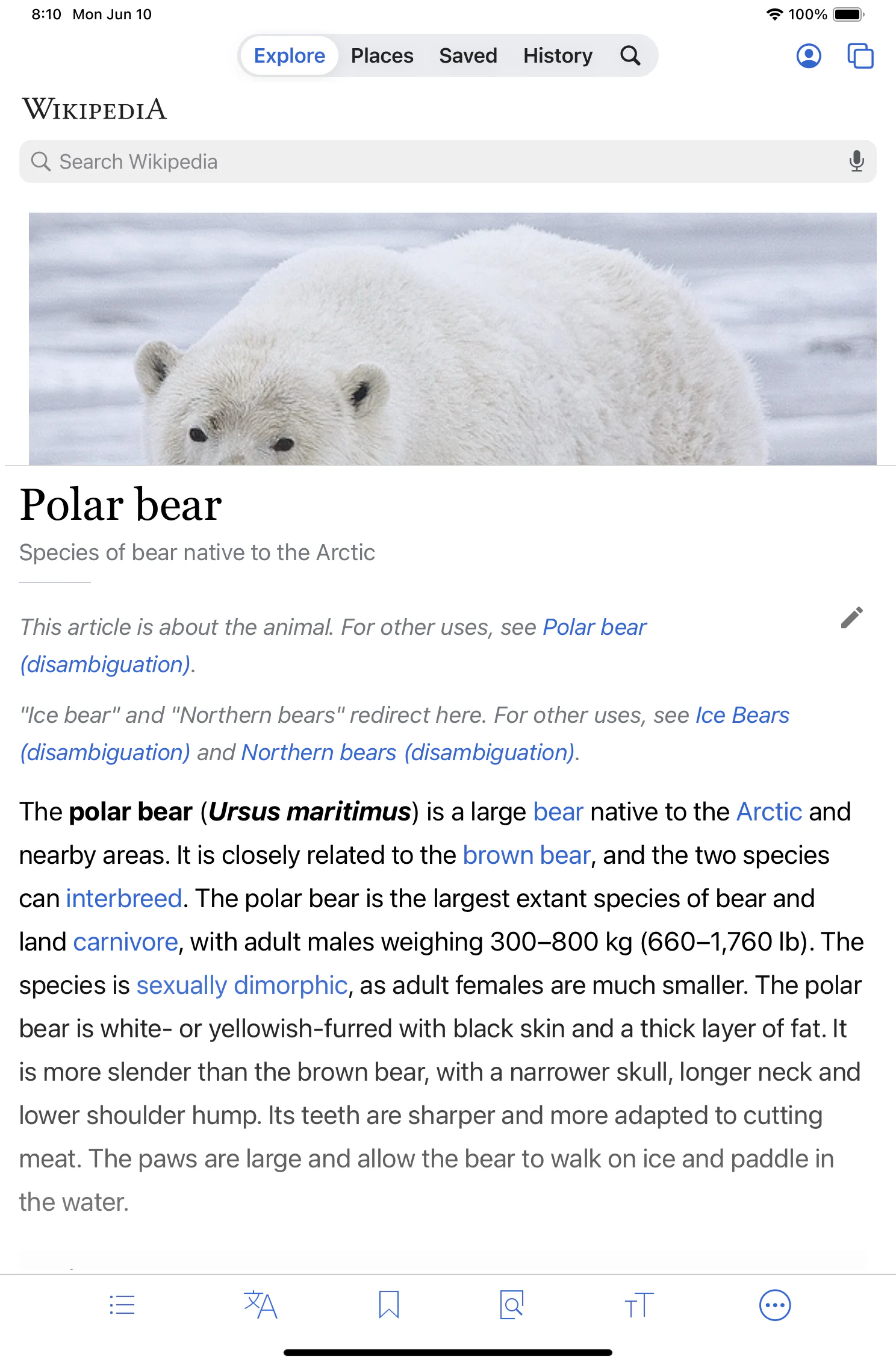
Procreate has adjusted its interface to match the new design language of iPadOS 26. The most noticeable changes are the Liquid Glass effect on certain interface areas, how the app participates in the new window system, and the feel of switching between full screen and multitasking.
For users who treat the iPad as a dedicated drawing tablet, any title bar or window border reduces the canvas area. For those who often open reference images, Files, or Safari next to Procreate, the window system can be useful. So there is no single configuration that works for everyone.
Procreate offers official guidance to disable windowed apps and reduce Liquid Glass. These are the two changes you should address first before blaming brushes, canvas, or performance.
Don't update iPadOS in the middle of an important project
Before upgrading the operating system, finish or create a checkpoint for your current project. Export important files in .procreate format to preserve layers, and also export PSD or TIFF if your pipeline requires compatibility with other software. Make additional PNG/JPEG previews so you can quickly check your artwork after the update.
Don't treat iCloud Sync as your only backup. Syncing makes data appear on multiple devices, but if a file is deleted or overwritten, the change can spread elsewhere. Keep at least one copy on an SSD, computer, or independent storage service.
Export important brush libraries, especially custom brushes and modified commercial brushes. Procreate 5.4 makes brushes more visible in the Files/iCloud system, but that does not replace a snapshot. See the guide managing Brush Libraries with Files and iCloud to back them up safely.
Checklist before upgrading to iPadOS 26
Procreate has been updated to a compatible stable version.
Exported .procreate files of important projects.
Saved brush libraries and custom palettes.
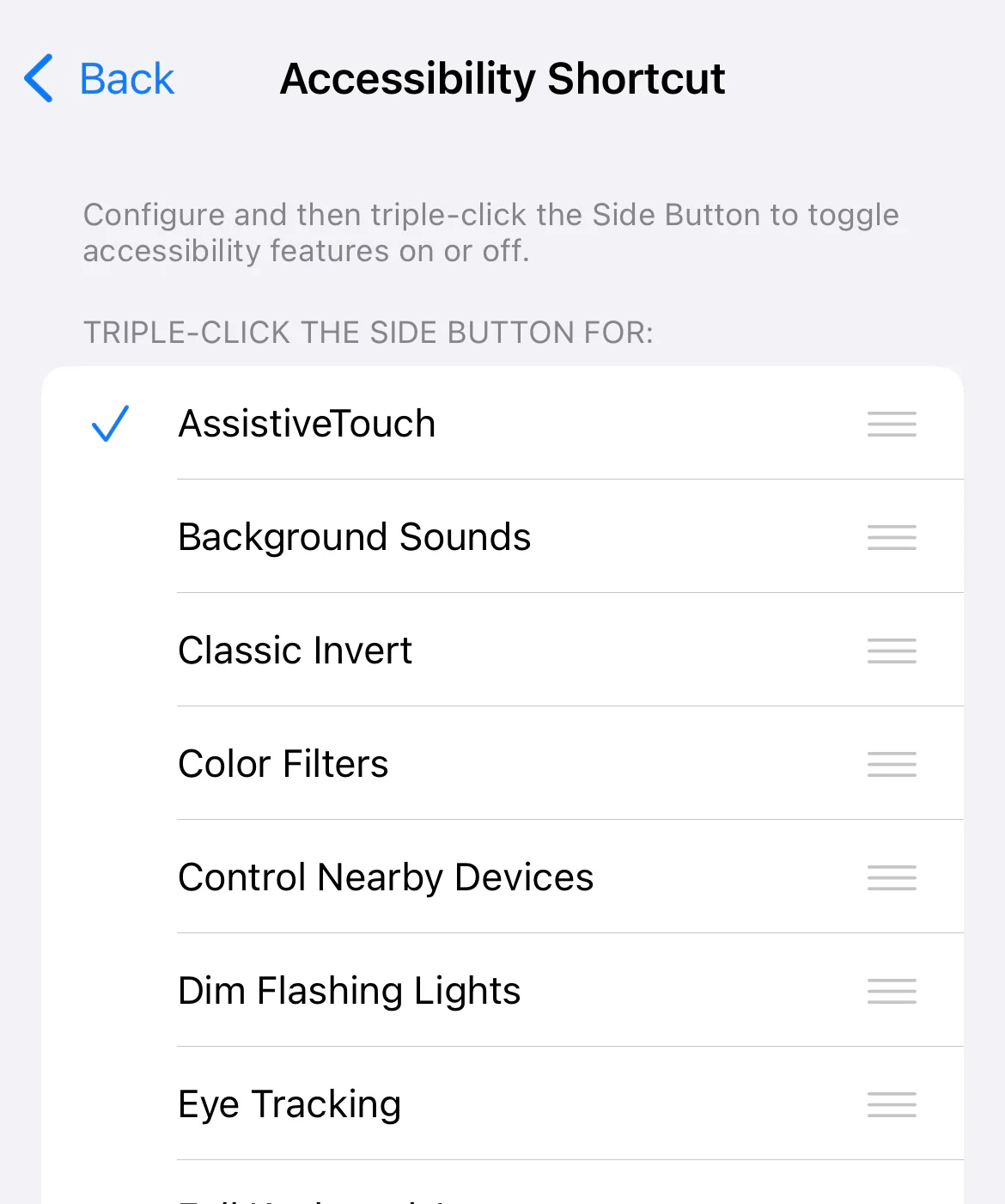
Recorded the global pressure curve and gesture settings.
Checked available storage on iPad and iCloud.
Taken screenshots of QuickMenu, Gesture Controls, and memory points.
Ensured the Apple Pencil has battery and a stable tip.
Not updating right before a commission deadline.
Screenshots of settings are very useful. After the update, if the pen feels different, you have a basis for comparison instead of trying to remember old sliders.
How to turn off Windowed Apps and return Procreate to full screen
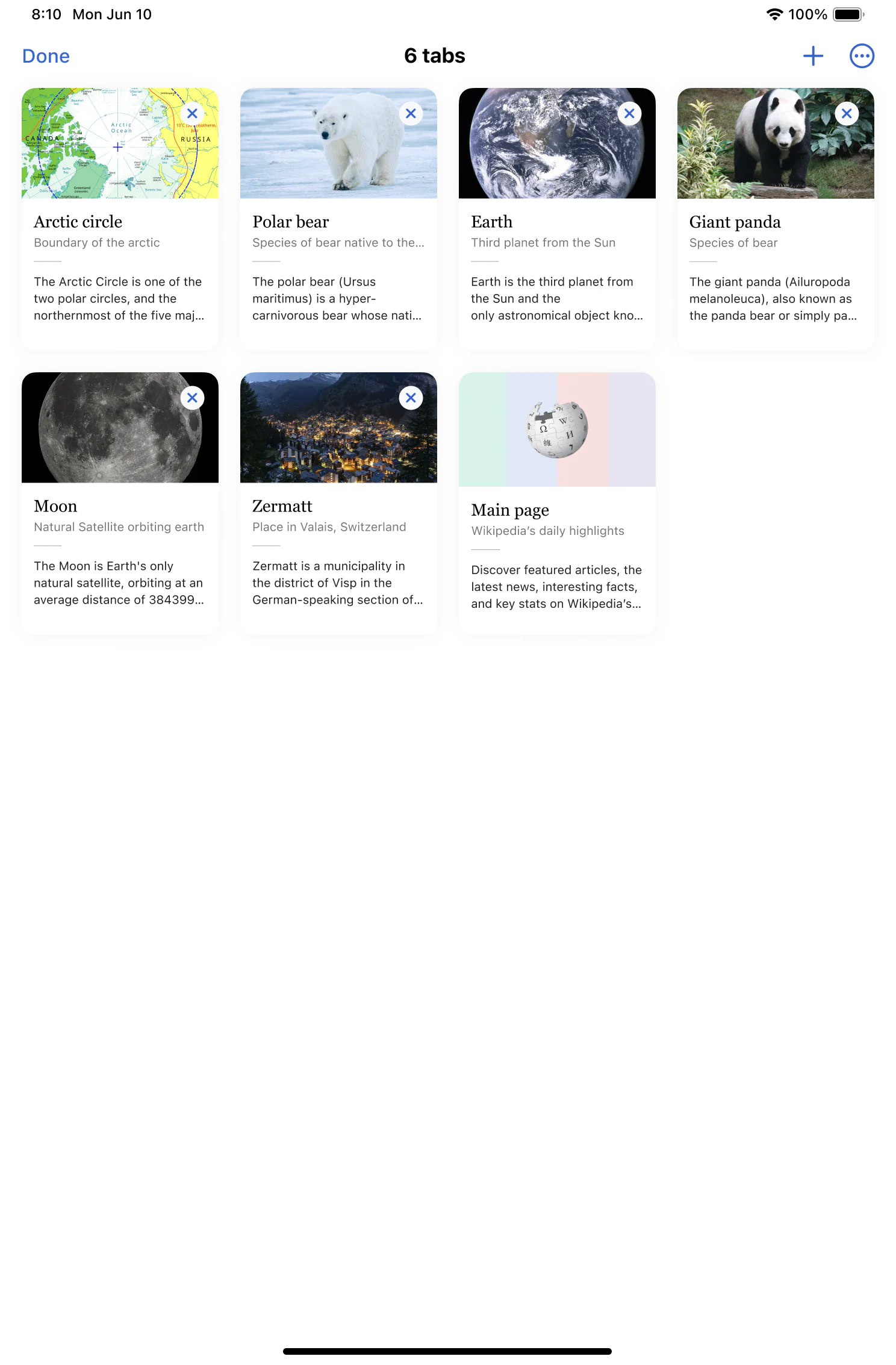
The tab overview interface on iPadOS shows that multiple workspaces can reduce the display area for the main app. Photo: RSchoenbaechler (WMF)/Wikimedia Commons.
If Procreate opens as a resizable window and you want the traditional full-screen experience, open the iPad's Settings. Go to Multitasking & Gestures. In the Multitasking section, choose Full Screen Apps.
This setting prioritizes full-screen apps and prevents the new window system from taking up workspace in ways you don't want. After changing it, close Procreate from the App Switcher and reopen it to check. If the interface hasn't changed, restart the iPad.
The location or name of the option may vary slightly depending on the iPadOS version and system language. Look for a settings group related to multitasking, gestures, and full-screen apps. You don't need to delete or reinstall Procreate just to fix window mode.
When should you keep Windowed Apps?
Windowed Apps are beneficial if you often place Procreate next to Safari, Files, Notes, or a reference app. You can view sample images, drag files, and exchange data faster. On a large iPad screen, the multitasking space may be sufficient.
Keep the window system when your task requires continuous comparison, such as designing a poster from a brief, drawing a product illustration from multiple photos, building a palette according to brand guidelines, or following an anatomy document. But you should create a fixed layout so windows don't randomly change size.
For detailed lineart, full-screen painting, or smaller iPads, Full Screen Apps is usually more comfortable. You can still use Reference Companion in Procreate, Quick Reference, or switch apps with system gestures.
Optimizing canvas space when using windows
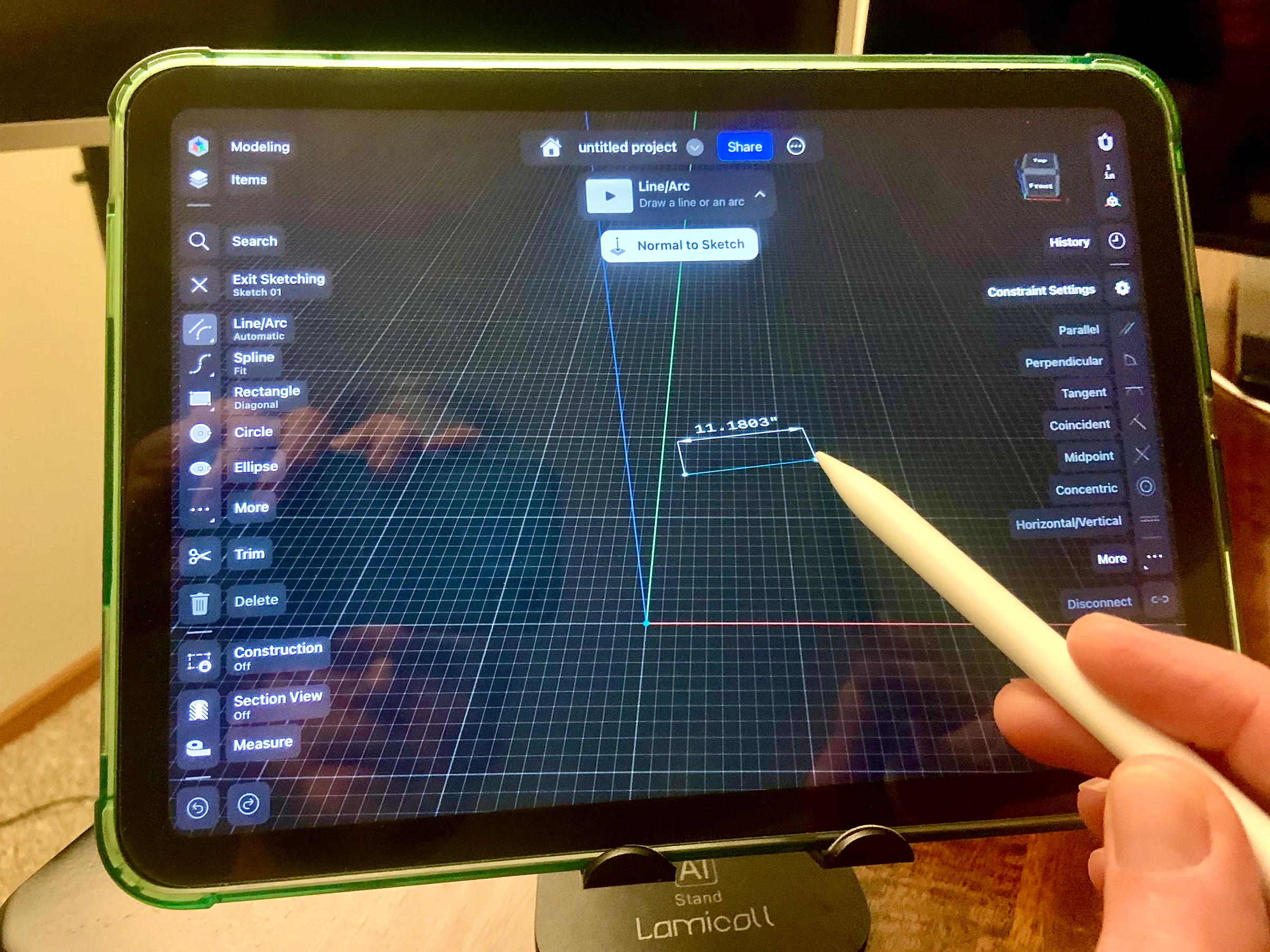
The keyboard and toolbar significantly reduce the visible area; with Procreate, panels and windows also need to be collapsed when not in use. Photo: Karl432/Wikimedia Commons.
If you decide to keep windowed mode, drag Procreate to a sufficiently large size and avoid overly narrow proportions. The canvas changes with the viewport but the artwork isn't cropped; however, panels can cover more area.
Hide the interface when you need to view the overall composition using the appropriate gesture or action in Procreate. Collapse the Layers, Brushes, and Colors panels right after using them. Don't leave multiple floating panels open all the time just because the screen is large.
Set the reference app to a reasonable width. Sample images don't need to take up half the screen if you mainly observe color or silhouette. When you need details, temporarily enlarge it and then return to your drawing layout.
How does Liquid Glass affect Procreate?
The higher the transparency, the more background content affects the readability of foreground elements; this is the principle to check when using Liquid Glass. Source: Eyeonus/Wikimedia Commons.
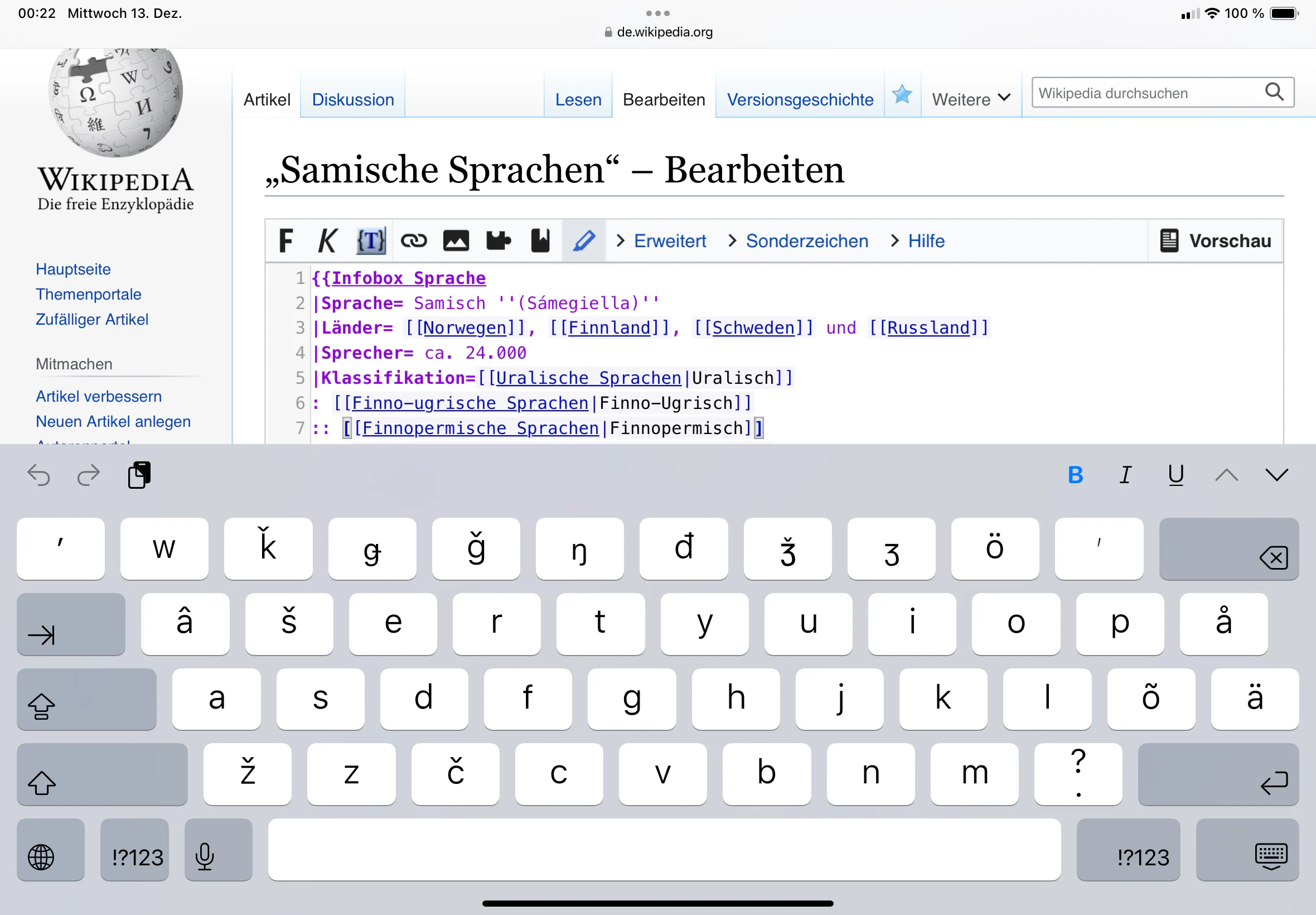
Liquid Glass creates a feeling of transparency, reflection, or background blending for interface elements. On a simple artwork background, the effect can look nice and modern. On paintings with many colors, high contrast, or heavy texture, text and icons can become harder to read.
The problem isn't just aesthetic. When you have to strain your eyes to find a button, your operation speed drops and you're more likely to tap the wrong thing. Artists who are sensitive to low contrast or work long hours in dim lighting may experience more eye fatigue.
iPadOS lets you reduce transparency system-wide or per app. This is a better solution than trying to change your artwork, canvas background color, or reinstall Procreate.
How to reduce Liquid Glass system-wide
Open Settings → Accessibility → Display & Text Size. Turn on Reduce Transparency. The system will reduce the transparency of many surfaces, increase the opacity of backgrounds, and often make text/icons easier to read.
This change applies broadly, not just to Procreate. So check Control Center, Dock, Files, and other apps. If you like Liquid Glass on the rest of the iPad but only want Procreate to be clearer, use Per-App Settings.
Reduce Transparency does not change your artwork files. It only affects how the system interface and apps are displayed. Exported artwork will not look “cloudy” or have its colors altered because of this setting.
How to reduce Liquid Glass in Procreate only
Go to Settings → Accessibility → Per-App Settings. Choose Add App, then add Procreate. Open the newly created Procreate entry and enable Reduce Transparency.
This is the right configuration when you want Procreate’s interface to be clear while keeping the default design in other apps. After enabling it, reopen Procreate and check the Layers, Brushes, Colors, Actions panels, and the sidebar.
If Procreate doesn’t appear in the list, use Add App and search for it by name. If the setting doesn’t take effect immediately, force-quit the app and reopen it. In some cases, restarting the iPad helps the system apply the change fully.
Should you enable Increase Contrast and Reduce Motion?
Accessibility settings should be changed one item at a time, then re-check readability and controls in Procreate. Photo: Luanmeiniubi/Wikimedia Commons.
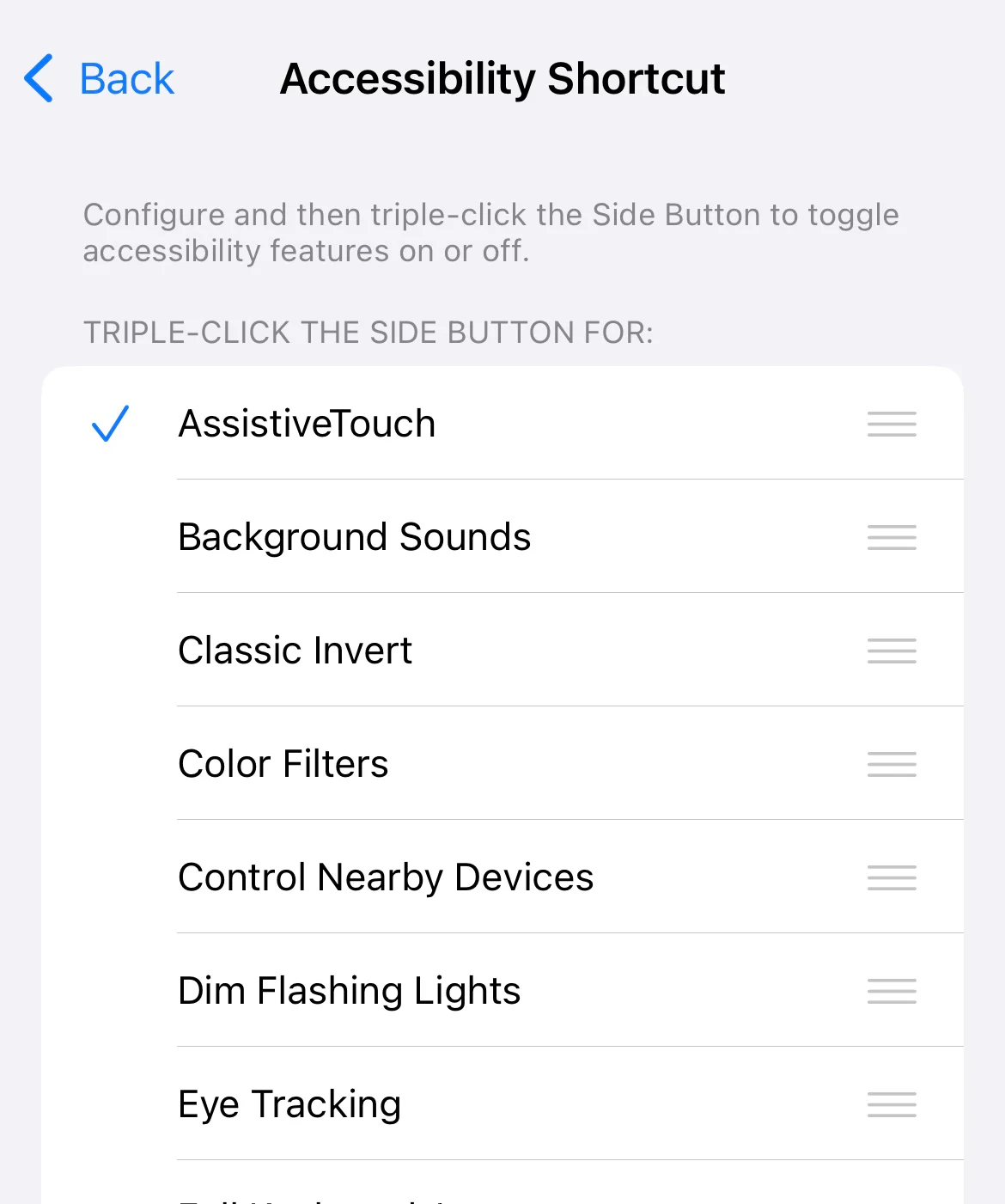
Besides Reduce Transparency, Accessibility also offers options like Increase Contrast or Reduce Motion. Increase Contrast can make panel borders and text clearer. Reduce Motion reduces some interface animations, which is helpful for people sensitive to animation or who want a less distracting experience.
Don’t enable everything at once and then evaluate. Turn on one setting, take screenshots, use Procreate for 10–15 minutes, and compare. Some options may make the interface less visually appealing but easier to use; prioritize practical work.
Per-App Settings allows you to test things only on Procreate. This is a safe way to avoid affecting the entire iPad.
Setting up the interface for bright and dark environments
In a bright room, the low-contrast interface and screen reflections can easily make icons fade into the background. Reduce Transparency and appropriate screen brightness help make things easier to read. Don’t keep brightness at maximum unless necessary, as it can increase eye strain and drain battery.
In a dark room, an overly bright interface next to a dark canvas can cause glare. Choose a suitable theme in Procreate/iPadOS and lower brightness to a comfortable level. When checking final colors, you should view them at a stable medium brightness rather than adjusting colors on a screen that is too dark.
Night Shift or True Tone can change how colors are perceived. For color-critical work, note the state of these settings and check artwork under standard conditions. This is not a Procreate bug.
Setting up the sidebar for your dominant hand
After the update, check the position of the size/opacity sidebar. Right-handed users usually place the sidebar on the left so their drawing hand doesn’t cover it; left-handed users can reverse it. Go to Procreate’s Preferences to adjust Right-hand Interface or the corresponding setting.
Adjust the interface size and slider positions so your other fingers can reach them without changing your grip. Create memory points for the brush size and opacity values you use often. With Apple Pencil Pro, haptics can help you recognize the milestones.
If the Procreate window is narrowed, the sidebar takes up a larger proportion. This is why Full Screen Apps are often better for lineart on smaller iPads.
Check Gesture Controls after the update
After an iPadOS update, navigation bars and system gestures need to be checked to avoid conflicts with Procreate controls. Photo: RSchoenbaechler (WMF)/Wikimedia Commons, CC0 1.0.
Open Actions → Prefs → Gesture Controls. Check Eyedropper, QuickMenu, Layer Select, Copy & Paste, Clear Layer, Assisted Drawing, Apple Pencil Pro Squeeze, and General. A system update may not proactively change Procreate’s settings, but new multitasking gestures can make interactions feel conflicting.
Try two-finger Undo, three-finger Redo, pinch-to-zoom, canvas rotation, tap-hold Eyedropper, and edge-swipe gestures. If swiping from the edge triggers the system instead of Procreate, adjust your habits or turn off unnecessary system gestures in Multitasking & Gestures.
Don’t assign the same action to multiple gestures. With Apple Pencil Pro, Squeeze and Double Tap should have different tasks. See the article Apple Pencil Pro in Procreate to build a clear preset.
Check Apple Pencil and pressure after the upgrade
Create a test canvas, select a default brush, and draw strokes from light to firm pressure. Check pressure, tilt, hover, double tap, squeeze, barrel roll, and haptics depending on your device. If a feature is missing, check Settings → Apple Pencil, Bluetooth, and Gesture Controls.
Don’t adjust the Pressure Graph right away until you’ve determined whether the issue is system-wide or brush-specific. Try three default brushes. If they all respond incorrectly, look at global Pressure & Smoothing or the Pencil connection. If only one brush is wrong, check Brush Studio.
With the per-brush pressure curves in Procreate 5.4, you can fine-tune after the system is stable. The guide Pressure Graph Procreate 5.4 walks through the process in detail.
Check the brush library after the update
Open Brushes and check Classic Library, custom libraries, Recent, Pinned, and Search. After a system or Procreate 5.4 change, old brushes may have been moved to the Classic Library rather than lost.
Open Files and check On My iPad → Procreate → Brushes and iCloud Drive → Procreate Brushes, depending on where they are stored. Wait for the sync indicators to finish. Don’t re-import the entire pack right away if you haven’t searched thoroughly, as that can easily create duplicates.
Try drawing with important brushes to check pressure, grain, and blending. If brushes on iCloud haven’t fully downloaded, download them before working offline.
Organizing Your Procreate Workspace for iPadOS 26
A full-screen creative app shows the benefits of prioritizing the canvas and only opening panels when needed. Photo: Wikideas1/Wikimedia Commons, CC0 1.0.
Create two mental configurations: Focus Mode and Reference Mode. Focus Mode uses Full Screen Apps, reduces transparency, turns off unnecessary notifications, and keeps Procreate as the only open app. Reference Mode keeps windowed/multitasking, placing Procreate next to Files or Safari.
You don't necessarily have to keep changing system settings constantly. You can use Reference Companion in Procreate for sample images, or import reference images into a separate canvas/group. When you need a long document, switch to windowed mode deliberately.
Name files and folders clearly so you don't depend on juggling multiple windows. A clean workspace helps reduce time spent searching for references and avoids accidentally closing the wrong canvas.
Using Focus and Notifications to Protect Drawing Sessions
Floating notifications, calls, and banners interrupt your stroke, especially now that iPadOS has a new interface effect. Create a Focus for Digital Art, allowing only important contacts. Turn off sensitive content previews when recording timelapses or livestreaming.
Focus doesn't directly improve brush performance, but it improves your workflow rhythm. Each interruption takes several minutes to get back into a focused state. For long lineart or rendering sessions, this impact is greater than saving a few actions.
Keep low battery and important storage notifications on. Don't disable all alerts if you're using iCloud and need to know when sync encounters errors.
Optimizing Storage and Preventing App Closures
iPadOS needs free space for updates, caches, exports, and app operations. If storage is nearly full, Files/iCloud may sync slowly, exports may fail, or Procreate may struggle to create large documents.
Check Settings → General → iPad Storage. Delete temporary videos, duplicate exports, and unnecessary app caches. Don't delete Procreate files or the Brushes folder before backing them up.
In Procreate, canvas size and layer count depend on hardware. If a file opens slowly after an update, check storage, resolution, layers, and running apps. Don't conclude that Liquid Glass reduces brush quality; the interface and document limits are separate issues.
Setting Up Colors After an Operating System Update
After upgrading, check Brightness, True Tone, Night Shift, and Color Filters. These can make colors look different even though the file's pixels haven't changed. Turn off Color Filters unless you're actively using them for accessibility.
Open a known-color artwork and compare it on another device or reference monitor. Check the canvas color profile in Procreate. Don't arbitrarily change the color profile just because the iPadOS interface looks different.
Liquid Glass and transparency mainly affect the UI, not the export content. But your eyes may adapt to the interface background, so it's best to check colors on a neutral background and at 100%.
Optimizing Drag and Drop and Files
The new window system can make dragging and dropping references and files more convenient. When doing so, ensure the image source has usage rights and preserve source metadata. Dragging an image onto the canvas doesn't mean you have commercial rights.
For brushes, download files to Files first, name them clearly, then import into a Test library. Don't drag dozens of packs into Procreate at once. Test each pack and back up licenses.
For projects, avoid dragging files while iCloud still shows a download icon. Wait for the download to finish to reduce the risk of files opening incomplete or being interrupted.
Creating a 30-Minute Post-Update Checklist
An iPad running iPadOS; after an operating system upgrade, you should recheck interface scaling, brightness, gestures, and app space. Photo: KK IN HK/Wikimedia Commons, CC BY-SA 4.0.
First 5 minutes: open Gallery, check files and thumbnails. Next 5 minutes: open Brushes, Search, Classic Library, and one custom brush. Third 5 minutes: test pressure, tilt, Squeeze/Double Tap. Fourth 5 minutes: test Layers, Selection, Transform, Snapping, and ColorDrop. Fifth 5 minutes: export PNG/PSD. Last 5 minutes: check Files/iCloud and close/reopen Procreate.
Record specific errors, iPadOS version, Procreate version, iPad model, and Pencil model. This information is useful when seeking help. "Procreate is buggy after the update" is too broad to diagnose; "Pressure is lost on all brushes but tilt still works" is more specific.
Don't start a new project before completing the minimum checks. A short test helps identify issues while you still have time to address them.
Suggested Interface Presets for Three User Groups
Full-Screen Focus Preset
Multitasking: Full Screen Apps.
Reduce Transparency: enable for Procreate only.
Notifications: Digital Art Focus.
Reference: use Companion or separate layers.
Sidebar: place on the side opposite your Pencil hand.
Reference Multitasking Preset
Windowed Apps: keep enabled.
Procreate takes up most of the screen.
Reference/Files in a smaller window.
Reduce Transparency: depending on readability preference.
Keep Procreate panels closed permanently.
High Contrast Accessibility Preset
Reduce Transparency: enabled.
Increase Contrast: test on Procreate specifically.
Reduce Motion: enable if animations cause discomfort.
Steady brightness, avoid too low or too high.
Theme and canvas background have adequate contrast.
Common Issues and How to Fix Them
Procreate Opens as a Small Window
Go to Settings → Multitasking & Gestures → Full Screen Apps. Close the app and reopen it. If it persists, restart your iPad.
Interface Too Transparent or Hard to Read
Enable Reduce Transparency system-wide or in Per-App Settings for Procreate only. You can also test Increase Contrast.
Drawing Gestures Intercepted by the System Multitasking
Check Multitasking & Gestures and Gesture Controls. Avoid swiping from the edge in ways that trigger system actions, or disable gestures you don't use.
Artwork Colors Look Different
Check True Tone, Night Shift, Brightness, Color Filters, and the canvas profile. Export the file and view it on another device to distinguish display issues from data issues.
Custom Brush Not Showing Up
Check Classic Library, Search, local Files, iCloud Drive, and download status. Don't re-import before confirming its location.
Pressure Feels Different
Try a default brush, check global curve, Pencil tip, connection, and per-brush Pressure Graph. Compare with screenshots of settings from before the update.
App Closes When Switching Windows
Check available storage, document size, number of open apps, and update Procreate/iPadOS. Back up files before trying again.
Things Not to Do Right After an Update
Do not delete Procreate before confirming your backup.
Do not re-import all brushes just because they aren't in the old location.
Do not make extreme adjustments to the global pressure curve to fix a single brush.
Do not change the project's color profile just because the interface looks different.
Do not update a bunch of apps and settings at the same time while you are diagnosing.
Do not open your only commission and then try destructive Liquify/Transform.
Do not treat iCloud Sync as an independent backup.
The best approach is to change one element at a time, test it, and write it down. This helps you return to a stable state if the new configuration doesn't work for you.
Safe Update Workflow for Professional Digital Artists
Choose a time with no deadlines within 24–48 hours. Back up files, brushes, and settings. Update iPadOS, then update Procreate from the App Store if a compatible version is available. Restart the device.
Set up Full Screen Apps or windowed mode as needed. Adjust Reduce Transparency. Run a 30-minute checklist. Complete an unimportant sketch. Only when everything is stable should you return to commission work.
Keep notes including the iPadOS version, Procreate version, and update date. If you discover a bug weeks later, you'll know where the changes started.
Conclusion
iPadOS 26 brings a new windowing system and Liquid Glass interface, but artists don't have to accept a workspace that reduces canvas area or is hard to read. The two most important actions are switching to Full Screen Apps when you need focus and enabling Reduce Transparency system-wide or just in Procreate when Liquid Glass reduces contrast.
To update safely, back up first, test brushes and Apple Pencil afterward, change one setting at a time, and run a small test before opening important projects. When configured correctly, Procreate on iPadOS 26 can still maintain a focused drawing experience while also allowing you to use multitasking when you truly need references, Files, or documents alongside.






Bình luận
0 bình luận
Đăng nhập để tham gia thảo luận cùng cộng đồng!
Đăng nhập ngayĐang tải bình luận...