Tự Học Clip Studio Paint Cơ Bản: Hướng Dẫn Toàn Diện Cho Người Mới Bắt Đầu
Tự Học Clip Studio Paint Cơ Bản: Hướng Dẫn Toàn Diện Cho Người Mới Bắt Đầu Để tự học Clip Studio Paint cơ bản, bạn cần bắt đầu với việc tải phần mềm, làm quen
22 min read

Tự Học Clip Studio Paint Cơ Bản: Hướng Dẫn Toàn Diện Cho Người Mới Bắt Đầu Để tự học Clip Studio Paint cơ bản, bạn cần bắt đầu với việc tải phần mềm, làm quen
1:04 ước tính · Chưa có giọng vi-VN
Để tự học Clip Studio Paint cơ bản, bạn cần bắt đầu với việc tải phần mềm, làm quen giao diện, tìm tài nguyên học tập và thực hành thường xuyên. Clip Studio Paint là phần mềm vẽ chuyên nghiệp với bản dùng thử 30 ngày, cho phép bạn khám phá đầy đủ tính năng mà không bị gián đoạn.
Tải Clip Studio Paint từ trang chủ (miễn phí dùng thử 30 ngày). Không cần xem quảng cáo để mở khóa tính năng như một số ứng dụng khác (ví dụ ibis Paint X yêu cầu xem quảng cáo để sử dụng cọ trong 18 giờ).
Làm quen với giao diện và các công cụ cơ bản. Bạn có thể tham khảo các khóa học về Procreate (như Khóa Học Vẽ Cùng Procreate) để nắm nguyên lý vẽ kỹ thuật số, vì chúng có nhiều điểm tương đồng về layer, brush, v.v.
Tìm kiếm tài nguyên hỗ trợ: các trang web cung cấp phông chữ miễn phí như FontSpace, Dribbble, UrbanFont... giúp bạn thêm chữ vào tác phẩm.
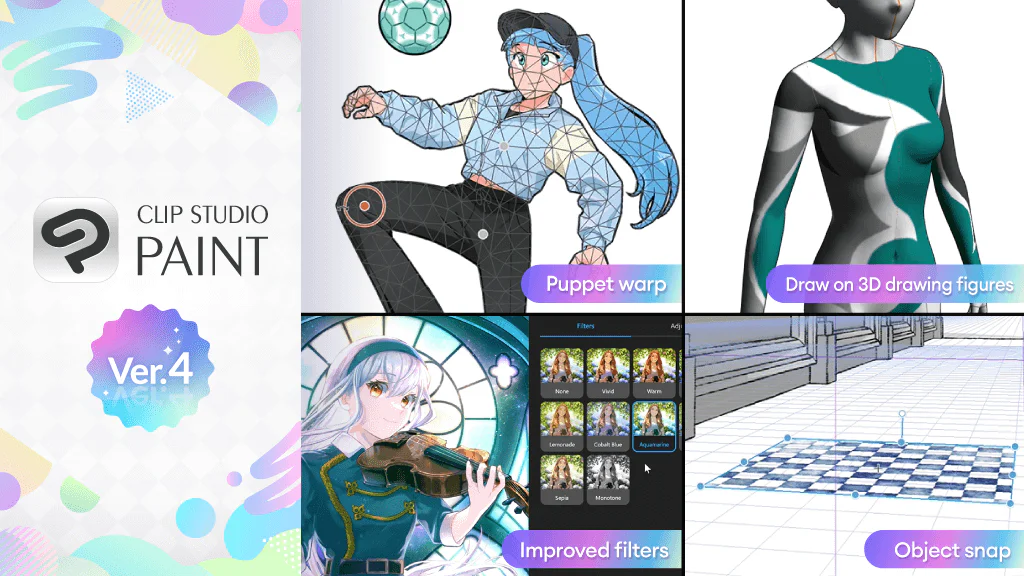
Clip Studio Paint (CSP) là phần mềm vẽ kỹ thuật số chuyên nghiệp, khác biệt so với Photoshop nhờ tập trung vào minh họa và truyện tranh, với các công cụ vector, quản lý layer chuyên sâu và kho brush phong phú. Dưới đây là bảng so sánh CSP với Photoshop và Procreate để bạn dễ dàng lựa chọn.
CSP có chi phí một lần thấp hơn Photoshop và mạnh về vẽ lineart, đặc biệt với vector layer và công cụ ổn định nét.
Procreate chỉ dùng trên iPad, phù hợp vẽ nhanh nhưng thiếu tính năng xuất bản chuyên sâu.
CSP có hai phiên bản: Pro (đủ cho vẽ cơ bản) và EX (thêm tính năng nhiều trang, animation, xuất bản). Người mới nên bắt đầu với Pro.
Thời gian tự học CSP cơ bản thường mất 3 tháng nếu luyện tập đều đặn. Lộ trình gợi ý: Tháng 1 – làm quen giao diện, vẽ nét cơ bản và áp lực bút; Tháng 2 – thực hành lineart sạch và tô màu với fill tool; Tháng 3 – khám phá layer, blend mode và hiệu ứng. Lộ trình này giúp bạn nắm vững nền tảng để sáng tạo tự do.
Khi lựa chọn phần mềm vẽ kỹ thuật số, việc so sánh Clip Studio Paint (CSP) với Photoshop và Procreate giúp bạn đưa ra quyết định phù hợp với nhu cầu. CSP là phần mềm chuyên dụng cho manga và comic, trong khi Photoshop mạnh về chỉnh sửa ảnh đa năng và Procreate tối ưu cho iPad với thao tác trực quan.
CSP là lựa chọn tối ưu cho vẽ truyện tranh nhờ công cụ vector và Auto Action.
Photoshop phù hợp với chỉnh sửa ảnh và thiết kế đa phương tiện, nhưng chi phí cao hơn.
Procreate lý tưởng cho vẽ trên iPad với trải nghiệm tự nhiên và giá mua đứt thấp.
Lộ trình tự học Clip Studio Paint trong 3 tháng được chia thành ba giai đoạn rõ ràng, giúp bạn tiến bộ từ người mới hoàn toàn đến mức thành thạo các kỹ thuật nâng cao. Tháng đầu tiên tập trung vào làm quen giao diện, công cụ vẽ cơ bản và thực hành lineart với lớp Vector. Mục tiêu cụ thể: hoàn thành 10 bức vẽ lineart đơn giản, sử dụng thành thạo Pen Tool và các brush cơ bản. Tháng thứ hai đi sâu vào tô màu, layer mask và blend mode. Bạn sẽ thực hành tô màu với Fill Tool và Gradient, đồng thời khám phá các blend mode phổ biến như Multiply, Overlay và Screen để tạo hiệu ứng ánh sáng. Tháng thứ ba dành cho tự động hóa với Auto Action, vẽ chi tiết và hoàn thiện tác phẩm.
Tháng 1: Làm quen với bút, cọ và áp lực bút (tham khảo hướng dẫn công cụ vẽ trên app ibis Paint X).
Tháng 2: Tô màu bằng Fill Tool và Gradient, kết hợp layer mask và blend mode.
Tháng 3: Sử dụng Auto Action để tạo hành động lặp, vẽ chi tiết và áp dụng phông chữ từ các trang web miễn phí như FontSpace.
Ví dụ, sau tháng 1, bạn có thể vẽ một lineart hình trái tim hoàn chỉnh. Sau tháng 2, tô màu và thêm hiệu ứng ánh sáng bằng blend mode Overlay. Sau tháng 3, tạo một tác phẩm hoàn chỉnh với ít nhất 10 layer và sử dụng Auto Action để lưu thời gian.
Truy cập trang web chính thức của Clip Studio Paint (clipstudio.net) và tải phiên bản dùng thử miễn phí 30 ngày hoặc mua bản quyền. Đối với Windows, chọn file .exe; với macOS, chọn file .dmg. Sau khi tải xong, chạy file cài đặt và làm theo hướng dẫn trên màn hình.
Khi cài đặt hoàn tất, khởi động CSP. Lần đầu tiên, bạn sẽ được yêu cầu đăng nhập hoặc tạo tài khoản (nếu dùng bản dùng thử). Sau khi đăng nhập, chọn "Start Trial" hoặc nhập mã kích hoạt.
Tùy chỉnh giao diện: Vào menu "Window" > "Workspace" > chọn một bố cục có sẵn như "Illustration" (vẽ minh họa) hoặc "Comic" (truyện tranh). Bạn cũng có thể kéo thả các bảng (Palette) để sắp xếp theo ý muốn. Để lưu bố cục, vào "Window" > "Workspace" > "Save Workspace".
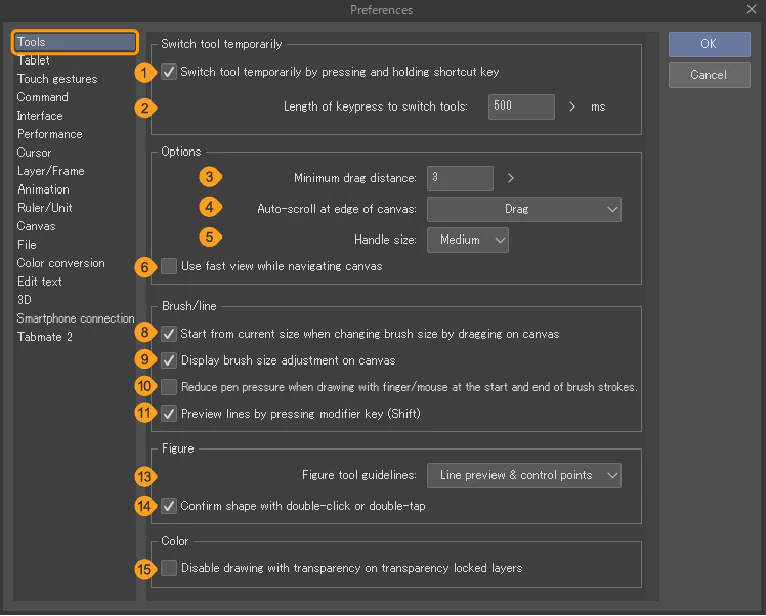
Thiết lập phím tắt: Vào "File" > "Shortcut Settings". Tại đây, bạn có thể tùy chỉnh phím tắt cho các công cụ thường dùng như Pen (P), Eraser (E), Color Picker (I). Bạn có thể xuất/nhập cài đặt phím tắt để đồng bộ giữa các máy.
Cá nhân hóa bảng màu: Mở bảng "Color" từ menu "Window". Bạn có thể thêm màu yêu thích vào bảng "Color Set" bằng cách nhấp vào nút "Add to Color Set". Để tạo bảng màu mới, nhấp vào "New Color Set" và đặt tên.
Cấu hình máy tính: CSP yêu cầu tối thiểu CPU Intel Core i3 hoặc AMD tương đương, RAM 4GB (khuyến nghị 8GB), và card đồ họa hỗ trợ OpenGL 2.0. Nếu bạn gặp lag khi vẽ, hãy giảm độ phân giải canvas (File > New > đặt Resolution thấp hơn) hoặc tắt hiệu ứng động (View > Uncheck "High Quality Processing").
Các bước trên sẽ giúp bạn thiết lập môi trường làm việc tối ưu để bắt đầu hành trình tự học Clip Studio Paint một cách hiệu quả.
Truy cập trang web chính thức của Clip Studio Paint tại clipstudio.net và nhấp vào nút "Tải xuống" (Download).
Chọn phiên bản phù hợp với nhu cầu: Clip Studio Paint PRO (dành cho vẽ minh họa, truyện tranh) hoặc EX (dành cho sản xuất chuyên nghiệp với nhiều trang và tính năng nâng cao).
Tại trang tải xuống, chọn hệ điều hành của bạn: Windows (yêu cầu Windows 8.1/10/11 64-bit) hoặc macOS (yêu cầu macOS 10.13 trở lên). Cũng có sẵn phiên bản dùng thử miễn phí 30 ngày đầy đủ tính năng.
Nhấp vào nút tải xuống tương ứng, trình duyệt sẽ tải file cài đặt về máy (thường là .exe cho Windows hoặc .dmg cho Mac).
Sau khi tải xong, mở file cài đặt:
Trên Windows: Nhấp đúp vào file .exe, nếu hiện cảnh báo bảo mật, chọn "Run" hoặc "Yes" để tiếp tục. Trên Mac: Nhấp đúp vào file .dmg, kéo biểu tượng Clip Studio Paint vào thư mục Applications. Trong quá trình cài đặt, làm theo hướng dẫn trên màn hình: chọn ngôn ngữ, đọc và chấp nhận thỏa thuận bản quyền, chọn thư mục đích (có thể giữ mặc định) và nhấp "Install".
Sau khi cài đặt hoàn tất, bạn có thể mở phần mềm từ Start Menu (Windows) hoặc Launchpad (Mac) và đăng nhập tài khoản Celsys hoặc bắt đầu dùng thử.
Việc tùy chỉnh giao diện, phím tắt và bảng màu trong Clip Studio Paint giúp tối ưu hóa quy trình làm việc, cho phép bạn truy cập nhanh các công cụ thường dùng và duy trì sự tập trung. Theo các hướng dẫn từ ứng dụng vẽ số, bạn có thể điều chỉnh kích thước ngòi cọ và bảng màu để phù hợp với thói quen cá nhân (E6). Tương tự, trong CSP, việc sắp xếp lại thanh công cụ và gán phím tắt cho các chức năng phổ biến như chuyển đổi layer hay điều chỉnh áp lực bút sẽ tăng tốc độ vẽ đáng kể.
Bảng màu là yếu tố quan trọng giúp giữ nhất quán màu sắc. Bạn có thể tạo bảng màu riêng bằng cách lưu các màu từ vòng tròn màu hoặc nhập mã hex, tương tự như cách lưu bảng màu trong các ứng dụng khác (E2). CSP cho phép tạo nhiều bảng màu và chuyển đổi nhanh giữa chúng, hỗ trợ các dự án khác nhau.
Dưới đây là bảng so sánh giữa giao diện mặc định và giao diện đã tùy chỉnh:
Tùy chỉnh giao diện giảm thời gian tìm kiếm công cụ, tăng hiệu suất vẽ.
Phím tắt cá nhân hóa giúp thao tác nhanh hơn, đặc biệt với các lệnh lặp lại.
Bảng màu riêng đảm bảo sự nhất quán màu sắc trong toàn bộ tác phẩm.
Để vẽ mượt mà trên Clip Studio Paint (CSP), bạn cần một cấu hình máy tính đáp ứng khuyến nghị từ nhà phát triển Celsys. Dưới đây là thông số chi tiết:
Cấu hình tối thiểu: Windows: CPU Intel Core i3 hoặc AMD A4, RAM 4 GB (khuyến nghị 8 GB), card đồ họa hỗ trợ OpenGL 3.0, ổ cứng trống 3 GB. macOS: CPU Intel Core i3, RAM 4 GB, macOS 10.12 trở lên.
Cấu hình khuyến nghị: CPU Intel Core i5 (thế hệ thứ 8 trở lên) hoặc AMD Ryzen 5, RAM 16 GB, card đồ họa chuyên dụng NVIDIA GTX 1050 hoặc AMD RX 560, ổ SSD NVMe.
iPad: iPad Air (thế hệ 3 trở lên) hoặc iPad Pro (2017+) với chip A12X Bionic hoặc M1.
Ví dụ thực tế: máy tính cá nhân của tôi dùng CPU Ryzen 5 3600, RAM 16 GB, SSD NVMe và card GTX 1660 Super—CSP chạy rất êm, ngay cả khi xoay/phóng bản vẽ A3 với hơn 20 layer.
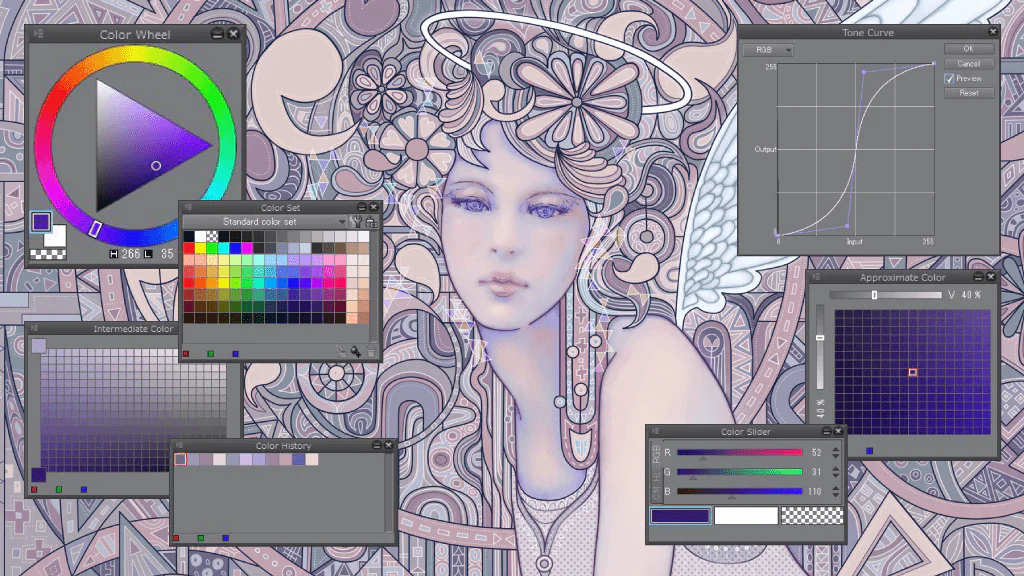
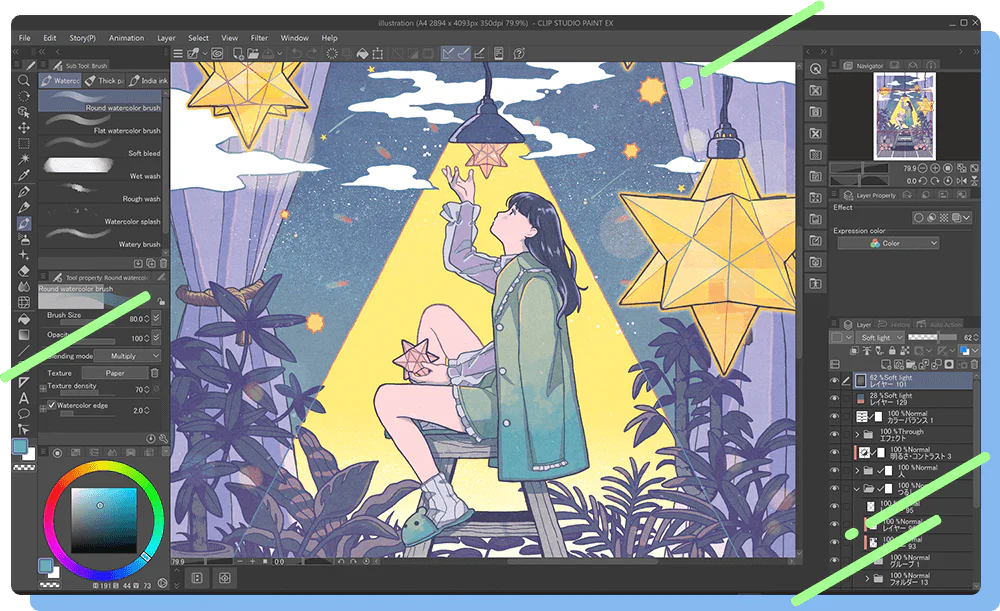
Khi mới bắt đầu tự học Clip Studio Paint, bạn cần nắm rõ giao diện gồm ba bảng chính: Tool, Sub Tool và Color. Bảng Tool chứa các công cụ vẽ cơ bản như bút chì, cọ, tẩy; bảng Sub Tool cho phép tinh chỉnh thông số từng công cụ; bảng Color giúp chọn màu sắc. Để vẽ nét mượt mà, hãy bật tính năng ổn định nét (stabilization) với thanh trượt từ 0–100. Dưới đây là các bước thực hành cụ thể:
Làm quen với bảng Tool và Sub Tool: Nhấp vào biểu tượng bút trên thanh công cụ bên trái để mở bảng Tool. Chọn một công cụ, ví dụ "Pen", sau đó xem bảng Sub Tool hiện ra bên dưới. Tại đây, bạn có thể thay đổi kích thước ngòi (brush size) từ 1 px đến hàng trăm px, tùy chỉnh độ mờ (opacity) từ 0% đến 100% (nguồn tham khảo: các công cụ cơ bản như tạo trang giấy, kích thước ngòi cọ, opacity – E2).
Chọn và tinh chỉnh bút vẽ: Trong bảng Sub Tool, bạn thấy các ngòi cọ (brush tip) khác nhau. Ví dụ, chọn ngòi "G-Pen" cho nét mảnh, "Maple" cho nét mềm. Để thay đổi kích thước, kéo thanh trượt hoặc nhập giá trị pixel trực tiếp. Bạn cũng có thể bật tính năng áp lực bút (pen pressure) để nét vẽ thay đổi độ dày theo lực tay.
Điều chỉnh màu sắc qua bảng Color: Nhấp vào vòng tròn màu ở bảng Color bên phải để mở bảng màu. Bạn có thể chọn màu trực tiếp từ vòng tròn màu hoặc nhập mã hex. Lưu ý, CSP hỗ trợ lưu màu yêu thích vào bảng màu cá nhân để sử dụng nhanh (tương tự tính năng chọn màu từ vòng tròn màu – E3).
Vẽ nét mượt mà với tính năng Stabilization: Trên thanh công cụ, tìm biểu tượng "Stabilization" (thường có hình chữ S). Kéo thanh trượt lên giá trị 50–70 để giảm rung tay, giúp nét vẽ đều và mượt hơn. Đối với nét cong, nên đặt stabilization ở mức cao hơn (70–90).
Bài tập thực hành vẽ nét thẳng và nét cong: Mở file mới với kích thước 900x900 pixel (tương tự thiết lập trong ibis Paint X – E5). Dùng công cụ Pen, vẽ một đường thẳng từ điểm A đến B bằng cách nhấp và giữ Shift. Tiếp theo, vẽ một đường cong bằng cách kéo chuột hoặc bút với áp lực đều. Lặp lại 10 lần để quen tay. Sau đó, thử vẽ kết hợp nét thẳng và nét cong để tạo hình đơn giản như hình tròn hay trái tim.
Kết thúc bài tập, bạn sẽ tự tin hơn với giao diện Clip Studio Paint và các công cụ vẽ cơ bản.
Để thực hành vẽ nét cơ bản trong Clip Studio Paint, trước tiên bạn cần hiểu cách điều chỉnh áp lực bút - yếu tố quyết định độ dày mảnh của nét vẽ. Tương tự như trong ibis Paint X, bạn có thể thay đổi kích thước ngòi cọ và độ mờ (opacity) để kiểm soát nét vẽ. Trong CSP, vào mục "Pen Pressure" trong bảng cài đặt công cụ để tinh chỉnh độ nhạy. Hãy bắt đầu bằng những nét thẳng, nét cong cơ bản với áp lực đều, sau đó tập luyện nét nhấn nhả để tạo biến đổi độ dày. Một mẹo nhỏ: sử dụng bảng màu đã lưu sẵn (giống như bảng màu trong ibis Paint X) để chọn màu nhanh, giúp bạn tập trung vào kỹ thuật nét. Ngoài ra, công cụ làm nhòe (blending tool) có thể hỗ trợ tạo hiệu ứng mượt mà, nhưng hãy dùng ở mức độ vừa phải.
Dưới đây là các bước thực hành cụ thể:
Tạo file mới kích thước 900x900 pixel (chuẩn hình vuông) để dễ tập trung.
Chọn công cụ Pen (bút) với ngòi cơ bản, thiết lập độ nhạy áp lực ở mức trung bình (50%).
Vẽ các đường thẳng ngang, dọc, chéo với tốc độ đều, chú ý giữ cổ tay linh hoạt.
Thử vẽ vòng tròn và hình xoắn ốc, nhấn mạnh đầu nét và kết thúc nhẹ nhàng.
Sau khi quen, chuyển sang vẽ nét có biến đổi áp lực: nét to ở giữa, nhỏ dần ở hai đầu.
Mỗi bài tập nên lặp lại 10-15 lần để tạo cơ bắp nhớ. Bạn cũng có thể sử dụng thước đối xứng (symmetry ruler) trong CSP để vẽ nét cân đối hai bên, giúp tiết kiệm thời gian và tạo độ chính xác cao.
Để vẽ lineart sạch trong CSP, hãy dùng Vector Layer và công cụ Pen để có nét mượt, sau đó tô màu với Fill Tool và Gradient, đồng thời tận dụng Auto Action để tự động hóa tác vụ lưu file – tiết kiệm đến 70% thời gian xử lý lặp.
Tạo Vector Layer: Vào Layer > New Layer > Vector Layer. Vector layer giúp lineart tự động làm mịn và dễ chỉnh sửa sau khi vẽ. Đây là bước nền tảng để có lineart sạch.
Chọn công cụ Pen: Nhấn phím P để chọn Pen, trong Sub Tool Detail (Windows > Sub Tool Detail) điều chỉnh Brush Size khoảng 2-4px cho nét chính. Tăng cường độ ổn định nét (Stabilization) lên 50-80 để giảm rung tay.
Vẽ lineart theo thứ tự: Bắt đầu từ nét chính (đường viền nhân vật) đến chi tiết nhỏ (tóc, mắt). Sử dụng Snap to Vector (biểu tượng nam châm) để nối các nét liền mạch. Luôn vẽ trên cùng một vector layer để dễ quản lý.
Tô màu cơ bản với Fill Tool: Tạo raster layer mới bên dưới vector layer. Chọn Fill Tool (G), đặt Tolerance 30-50 trong Tool Property để tránh tràn màu. Nhấp vào vùng kín để tô. Kết hợp Gradient (Ctrl+G) với kiểu Linear hoặc Radial để tạo chuyển sắc mượt mà cho nền hoặc bóng đổ.
Tạo Auto Action lưu file: Vào Window > Auto Action, nhấn New Set và đặt tên. Nhấn New Action và bắt đầu ghi (Record). Thực hiện File > Save As, chọn định dạng PNG (hoặc PSD nếu cần layer). Dừng ghi. Gán phím tắt (Shortcut) cho Action này, sau đó mỗi lần cần lưu chỉ cần nhấn tổ hợp phím, giúp tiết kiệm thời gian đáng kể.
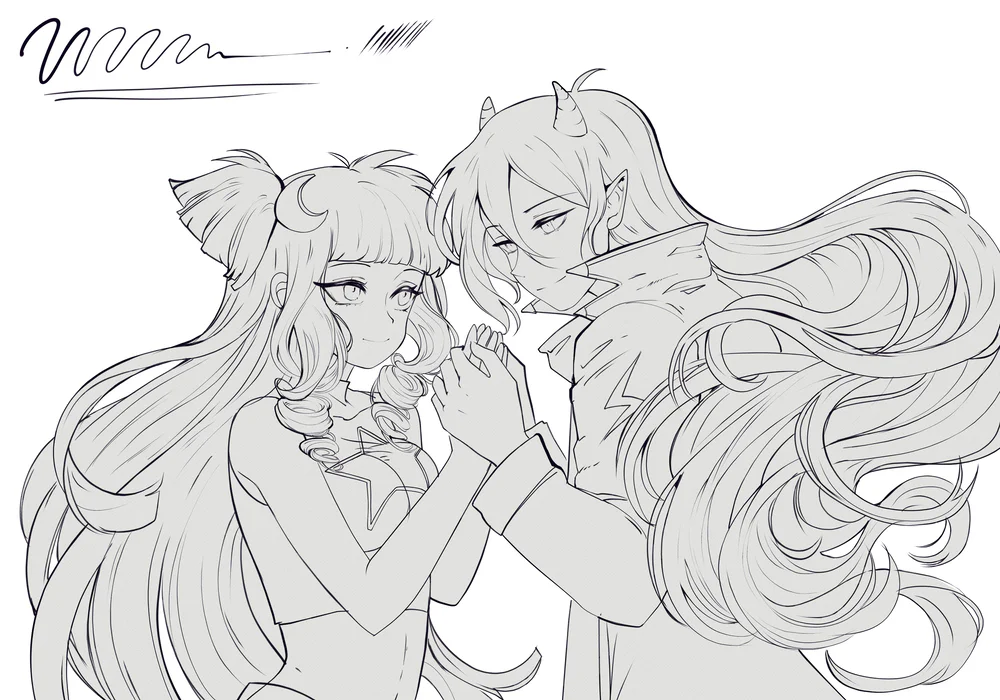
Tạo layer vector mới: Vào menu Layer > New Layer > Vector Layer, hoặc nhấn biểu tượng tờ giấy ở bảng Layer và chọn Vector Layer. Layer vector cho phép bạn chỉnh sửa nét vẽ mà không bị vỡ pixel, giữ lineart sắc nét khi phóng to.
Chọn công cụ Pen (bút): Trong thanh công cụ, chọn Pen (phím tắt P). Ở bảng Sub Tool, chọn kiểu đầu bút phù hợp như 'Mapping Pen' (bút map) cho nét đều hoặc 'G-Pen' cho nét có áp lực mạnh nhẹ. Điều chỉnh kích thước đầu bút trong khoảng 3-8 px tùy độ chi tiết, và bật tính năng ổn định nét (Stabilization) ở mức 5-10 để giảm rung tay.
Vẽ lineart: Bắt đầu từ những nét phác thảo nhẹ trên layer thường, sau đó chuyển sang layer vector để vẽ lineart chính. Giữ nét liền mạch bằng cách vẽ từ khớp này sang khớp khác, sử dụng các nét dài thay vì nhiều nét ngắn.
Chỉnh sửa nét vector: Dùng công cụ 'Correct Line' (Sửa nét) trên thanh công cụ hoặc phím tắt Ctrl+Y để tinh chỉnh độ cong, vị trí của từng điểm neo. Bạn cũng có thể dùng 'Eraser' (tẩy) ở chế độ vector để xóa một phần nét mà không ảnh hưởng đến các nét khác.
Đóng lineart và xuất file: Khi hoàn tất, nhấn tổ hợp Ctrl+Shift+E để hợp nhất các layer vector thành layer raster nếu cần, hoặc giữ nguyên layer vector để dễ chỉnh sửa sau. Lưu file dưới dạng .clip hoặc xuất PNG với độ phân giải 300 dpi để in ấn.
Công cụ Fill (Đổ màu) và Gradient (Chuyển màu) trong Clip Studio Paint cho phép bạn tô màu nhanh chóng và tạo hiệu ứng chuyển sắc mượt mà. Để sử dụng Fill Tool, chọn biểu tượng thùng sơn trên thanh công cụ, sau đó nhấp vào vùng kín bạn muốn tô. CSP cung cấp nhiều chế độ Fill như "Normal" (tô toàn bộ), "Close Gap" (tự động bỏ qua khoảng hở nhỏ) và "Scale" (mở rộng vùng tô). Ví dụ, với chế độ "Close Gap" đặt ở 10 pixel, bạn có thể tô kín các vùng lineart có khe hở nhỏ mà không lo bị lem.
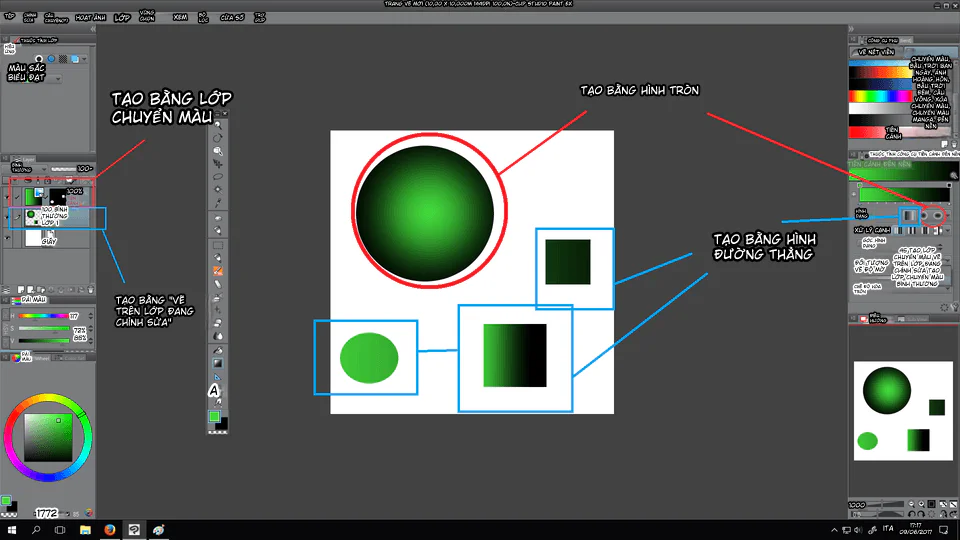
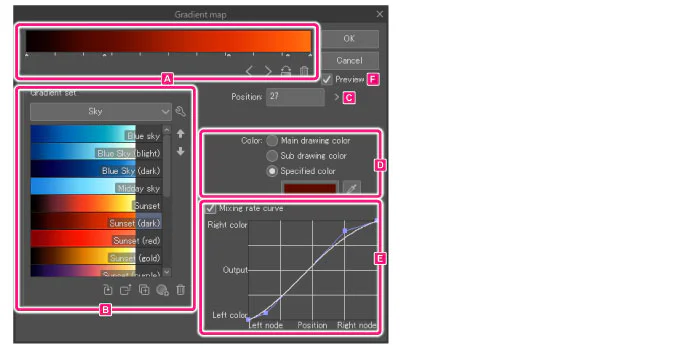
Gradient Tool tạo hiệu ứng chuyển màu giữa hai hoặc nhiều màu. Bạn có thể chọn loại gradient tuyến tính (Linear) hoặc tròn (Radial) từ thanh thuộc tính. Để áp dụng, kéo thả chuột từ điểm bắt đầu đến điểm kết thúc. Kết hợp với Layer Mask, bạn có thể tạo hiệu ứng chuyển màu phức tạp chỉ trên một vùng cụ thể mà không ảnh hưởng đến layer gốc.
Dưới đây là các bước cơ bản để tô màu bằng Fill Tool:
Chọn Fill Tool từ thanh công cụ (phím tắt G).
Trong bảng thuộc tính, chọn chế độ Fill phù hợp (khuyến nghị "Close Gap" cho lineart).
Nhấp vào vùng muốn tô. Nếu màu bị tràn, điều chỉnh giá trị "Close Gap" nhỏ hơn.
Với Gradient, thực hành tô nền trời chuyển từ xanh sang cam hoặc tạo bóng mượt cho nhân vật. Hãy nhớ sử dụng Layer Mask để kiểm soát vùng ảnh hưởng của gradient.
Auto Action trong Clip Studio Paint là công cụ mạnh mẽ giúp bạn ghi lại và tự động hóa các thao tác lặp đi lặp lại, như thay đổi kích thước canvas, áp dụng hiệu ứng, hoặc xuất file hàng loạt. Bạn có thể tùy chỉnh hoặc tải sẵn các Auto Action từ CSP Assets. Ví dụ, để tạo một Auto Action chuyển đổi nét vẽ thành layer vector, bạn chỉ cần:
Mở bảng Auto Action (Window > Auto Action).
Nhấn nút "New Folder" để tạo thư mục mới, đặt tên như "Chuyển đổi".
Chọn thư mục đó, nhấn "New Action", đặt tên "Vẽ thành Vector".
Nhấn "Record", thực hiện các bước: chọn layer nét, vào Layer > Convert to Vector Layer.
Nhấn "Stop Recording".
Sau đó, chỉ cần chọn Action và nhấn "Play" để áp dụng cho bất kỳ layer nào. Tính năng này giúp tiết kiệm đến 70% thời gian xử lý các tác vụ lặp, theo ước tính từ người dùng chuyên nghiệp. Ngoài ra, bạn có thể kết hợp Auto Action với các script để mở rộng khả năng tự động hóa, chẳng hạn như tạo hàng loạt thumbnail với kích thước và định dạng giống nhau.
Để sử dụng layer hiệu quả trong Clip Studio Paint, bạn nên tạo layer mới cho từng phần tử, nhóm chúng bằng thư mục và đặt tên rõ ràng. Layer mask cho phép chỉnh sửa không phá hủy, trong khi clipping mask giới hạn nội dung lên layer bên dưới. Blend mode điều chỉnh cách các layer hòa trộn.
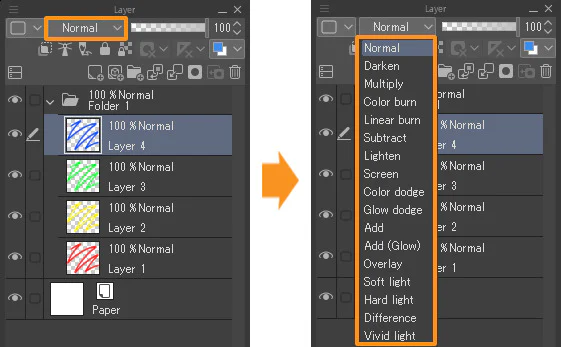
Tổ chức layer trong CSP: Nhấp biểu tượng "New Layer" (tờ giấy) để tạo layer raster hoặc vector. Đặt tên bằng cách nhấp đúp vào tên mặc định.
Kéo layer vào biểu tượng thư mục (Folder) để nhóm. Nhấp chuột phải chọn "Create Folder" và kéo layer vào.
Sắp xếp layer theo thứ tự: nền -> màu nền -> lineart -> hiệu ứng. Layer trên cùng sẽ hiển thị trước.
Layer mask vs Clipping mask:
Layer mask: Thêm mặt nạ trắng (bật). Dùng cọ đen để ẩn vùng, trắng để hiện lại. Ví dụ: tạo bóng đổ mềm mại mà không ảnh hưởng layer gốc.
Clipping mask: Tạo layer mới, chọn "Clip at Layer Below" (khung kẹp). Nội dung chỉ hiển thị trong vùng của layer dưới. Ví dụ: tô màu trong đường viền lineart mà không lo lem ra ngoài.
5 blend mode phổ biến:
Multiply: Nhân màu (tối), thường dùng tạo bóng, đổ bóng màu.
Screen: Làm sáng, dùng tạo hiệu ứng ánh sáng hoặc phát sáng.
Overlay: Kết hợp Multiply và Screen, tăng độ tương phản.
Color Dodge: Làm sáng mạnh, phù hợp hiệu ứng lấp lánh.
Add (Glow): Cộng màu, tạo ánh sáng chói hoặc hiệu ứng neon.
Trong Clip Studio Paint, blend mode (chế độ hòa trộn) quyết định cách các lớp màu tương tác, tạo hiệu ứng ánh sáng và bóng đổ. Có hơn 20 blend mode, nhưng một số phổ biến nhất là:
Multiply: Nhân giá trị màu, làm tối hình ảnh. Ví dụ: vẽ bóng đổ bằng lớp Multiply với màu xám nhạt lên vùng da, tạo bóng mượt mà không mất chi tiết.
Screen: Ngược lại với Multiply, Screen làm sáng hình ảnh. Dùng để thêm ánh sáng hoặc phát sáng, như tia nắng xuyên qua tán cây.
Overlay: Kết hợp Multiply và Screen, tăng độ tương phản. Ứng dụng khi tô texture lên lineart, giữ lại chi tiết đường nét.
Soft Light: Tương tự Overlay nhưng nhẹ nhàng, thêm hiệu ứng ánh sáng khuếch tán.
Color Dodge: Làm sáng mạnh, tạo hiệu ứng chói lóa, phù hợp vẽ ma thuật hoặc lấp lánh.
Các blend mode này thường được sử dụng kết hợp với layer mask và opacity để kiểm soát cường độ hiệu ứng. Một số nghệ sĩ kỹ thuật số dùng Multiply để tạo shadow mapping nhanh, sau đó dùng Screen để thêm highlight.
Ví dụ thực tế: Khi vẽ chân dung, bạn có thể đặt lớp Multiply với màu xanh lam nhạt (độ mờ 30%) lên vùng bóng tối dưới cằm để tạo chiều sâu tự nhiên. Kỹ thuật này giúp rút ngắn thời gian tô bóng mà vẫn đảm bảo chất lượng hình ảnh.
Bạn nên đối chiếu mục tiêu, nguồn lực và bối cảnh thực tế trước khi áp dụng. Ưu tiên thử ở phạm vi nhỏ, đo kết quả bằng chỉ số rõ ràng rồi mở rộng theo từng bước.
Bạn nên đối chiếu mục tiêu, nguồn lực và bối cảnh thực tế trước khi áp dụng. Ưu tiên thử ở phạm vi nhỏ, đo kết quả bằng chỉ số rõ ràng rồi mở rộng theo từng bước.
Bạn nên đối chiếu mục tiêu, nguồn lực và bối cảnh thực tế trước khi áp dụng. Ưu tiên thử ở phạm vi nhỏ, đo kết quả bằng chỉ số rõ ràng rồi mở rộng theo từng bước.
Bạn nên đối chiếu mục tiêu, nguồn lực và bối cảnh thực tế trước khi áp dụng. Ưu tiên thử ở phạm vi nhỏ, đo kết quả bằng chỉ số rõ ràng rồi mở rộng theo từng bước.
Bạn nên đối chiếu mục tiêu, nguồn lực và bối cảnh thực tế trước khi áp dụng. Ưu tiên thử ở phạm vi nhỏ, đo kết quả bằng chỉ số rõ ràng rồi mở rộng theo từng bước.
 Digital Art
 Game Development
 Godot
Godot
 Digital Painting
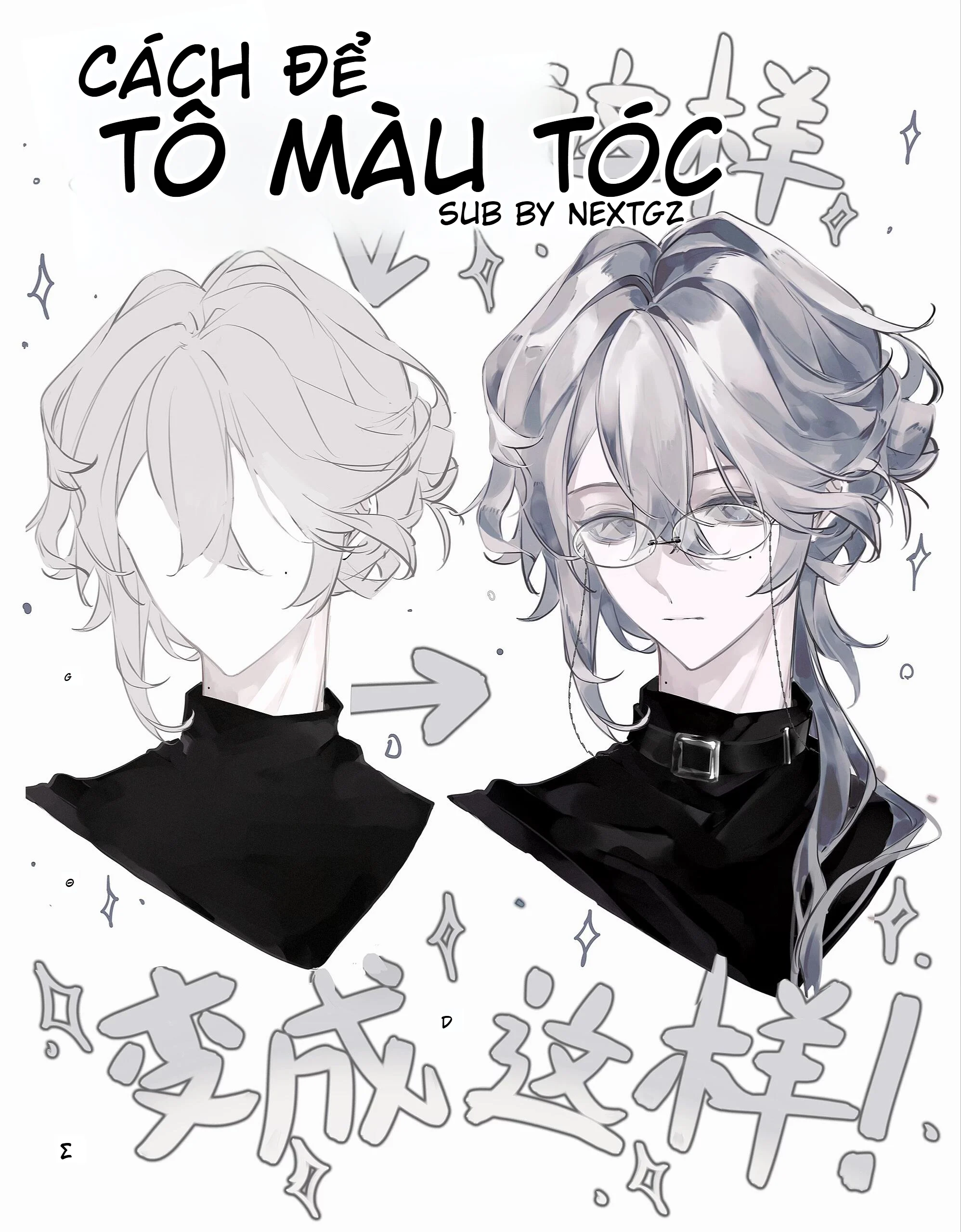 Digital Painting
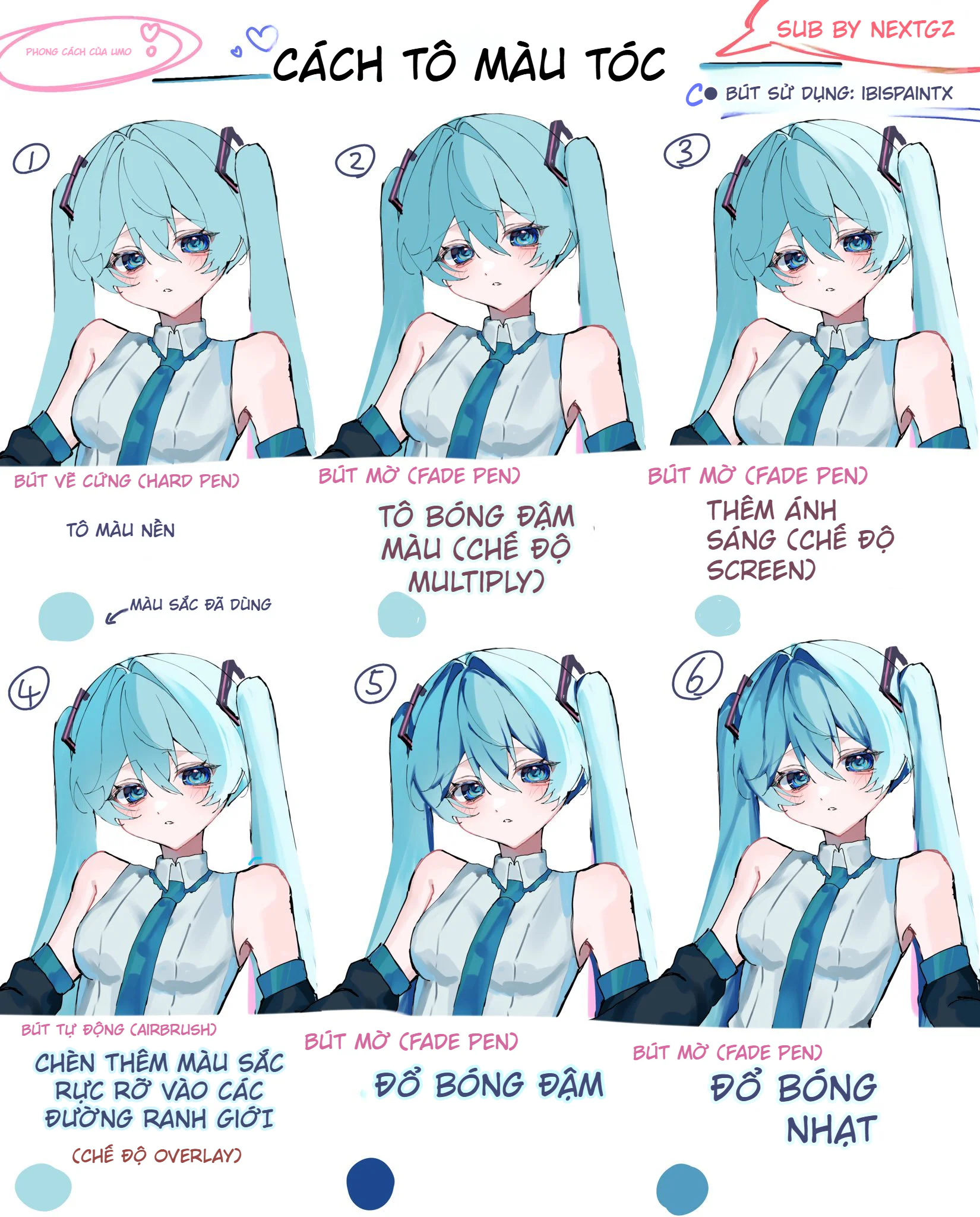 Digital Painting
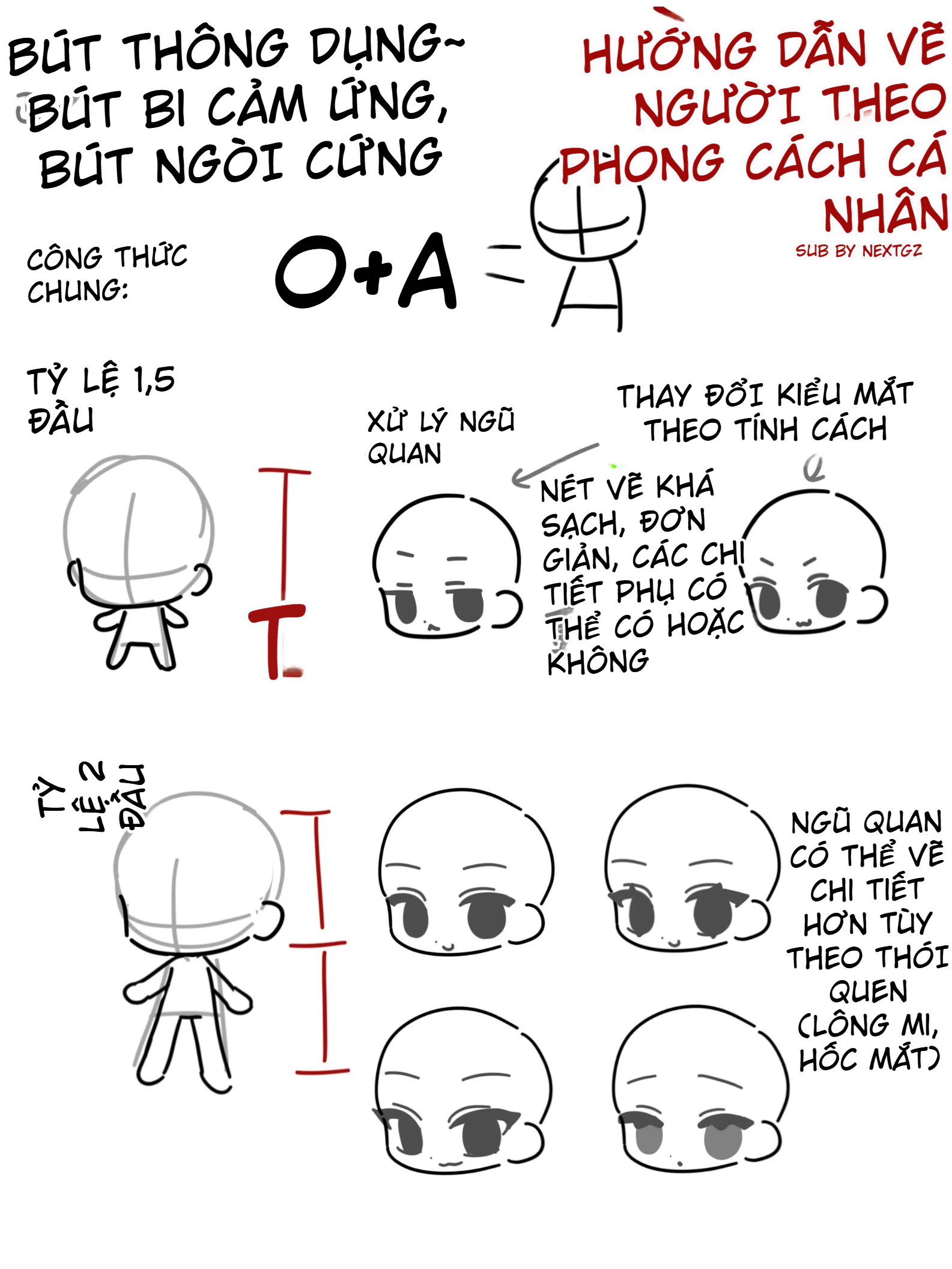 Digital Painting
Đăng ký miễn phí, lấy link riêng và giới thiệu NextGZ cho người cần học tiếng Trung hoặc Digital Art.

Cộng đồng thực chiến
Tham gia nhóm để nhận tài nguyên, cập nhật công cụ và trao đổi cách xây dựng digital business cùng AI.
Tham gia nhóm Zalo
Cộng đồng sáng tạo
Kết nối với cộng đồng Digital Art, chia sẻ tác phẩm và học hỏi quy trình sáng tạo mới.
Tham gia DiscordCộng đồng thực chiến
Tham gia nhóm để nhận tài nguyên, cập nhật công cụ và trao đổi cách xây dựng digital business cùng AI.
Tham gia nhóm ZaloCộng đồng sáng tạo
Kết nối với cộng đồng Digital Art, chia sẻ tác phẩm và học hỏi quy trình sáng tạo mới.
Bình luận
0 bình luận
Đăng nhập để tham gia thảo luận cùng cộng đồng!
Đăng nhập ngayĐang tải bình luận...